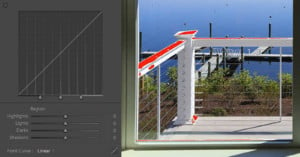
Here’s a nifty Photoshop tip by photographer Alex Wise on how you can use a Threshold layer to approximate black and white points in a photograph, and then use those points in the Curves tool to remove color casts from photos.

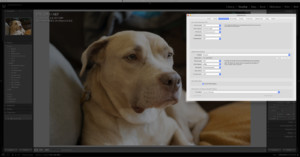
Your photos look better processed in Lightroom 4. Period. [...] The improvements in Lightroom’s Development module are so significant, and so much better than what we’ve ever had before, that I think you’ll be hard-pressed to find most anyone still using Lightroom 3 in just a few months from now. In fact, if they didn’t add another feature, it would still be worth the upgrade just to get better looking images.
You can watch a walkthrough of new the new module here, or play around with the new engine yourself by downloading the free Lightroom 4 Beta release. This is also great news for Photoshop users: the same engine is coming to Photoshop CS6 and Adobe Camera Raw.
Here’s a tutorial on how to do non-automated HDR for real estate photography using Photoshop CS5. The first thing you’ll need is a sturdy tripod with a level. The closer you are to a leveled image, the less correction you’ll have to do later. Read more…
There are plenty of presets out there that attempt to make your digital images look like they were shot with film, but VSCO Film by Visual Supply Co is different: it’s a Lightroom and Adobe Camera RAW add-on that uses film profiles to change how the RAW files are interpreted rather than simply perform standard adjustments on the images. The video introduction above shows some examples of what the various options can do. This patent-pending method of film emulation doesn’t come cheap — it costs $120 each for Canon or Nikon profiles, and $200 for both.
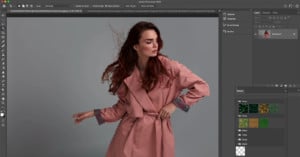
Here’s a Photoshop tutorial by Twin Cities Photography Group teaching how you can use Photoshop’s High Pass Filter to soften the skin on a portrait subject without losing the skin’s texture.
The photographs in artist Max de Esteban’s Proposition One project might look like X-Ray images, but they were actually captured with an ordinary camera. They were created by carefully deconstructing old gadgets, photographing them in “layers”, then “reassembling” the gadgets digitally. You can see them on display through December 9th at Klompching Gallery in NYC Read more…
Here’s an illuminating (pun intended) video walkthrough by photographer Eric Curry, showing how he went about creating a photo of a B-25 bomber. His technique for lighting the plane is similar to the real estate photography walkthrough that we featured last weekend, and involves lighting the scene a bazillion times from different angles, and then combining the different parts of the photo in Photoshop.
As he says in the video, it’s a useful technique that can be done by “anyone with a digital camera and a tremendous amount of patience.”
The Sharpen Tool in Photoshop has always been useful in that it allows you to quickly sharpen specific areas in a photograph, but a major problem was that it had the tendency to introduce nasty artifacts into the image. Alternative methods that avoid this issue (e.g. using a new sharpened layer) became popular, leaving the Sharpen Tool to gather dust on many users’ tool pallets.
Well, if you’ve recently upgraded to Photoshop CS5, you might want to take another look at the tool. They’ve quietly introduced a new feature (on by default) called “Protect Detail”, which allows for brush-based pressure-sensitive sharpening without the annoying artifact problem.
The debate regarding what makes a photograph “truthful” or not is probably as old as the art of photography itself. By sheer coincidence, there were a couple interesting articles published today on this issue, and written from two different points-of-view. Read more…
Photoshop product manager Bryan O’Neil Hughes offers this quick tip for getting better results with Content Aware Fill: use smaller selections for more accurate results.