
I’m Really Digging Adobe Camera Raw’s New Glow Effect
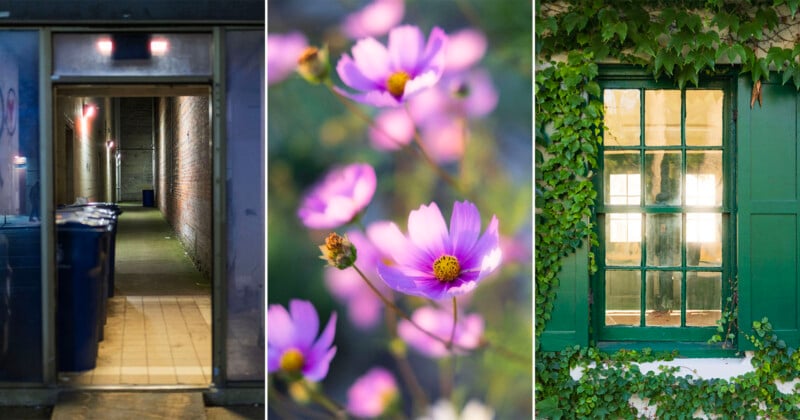
Adobe Camera Raw 18.6 arrived recently, bringing a rather interesting new Glow feature in its Effects panel that could easily fly under the radar. With this new tool, photographers can easily create an Orton effect or mimic film halation, delivering some pretty cool looks.
So far, this new Glow tool is only available inside Adobe Camera Raw in Photoshop, but there’s little doubt it will make its way into Lightroom at some point. You can access it through ACR’s Effects panel, which includes sliders like Texture, Clarity, Dehaze, Vignette, and Grain. Below those is the new Glow slider, which itself has some nested options.
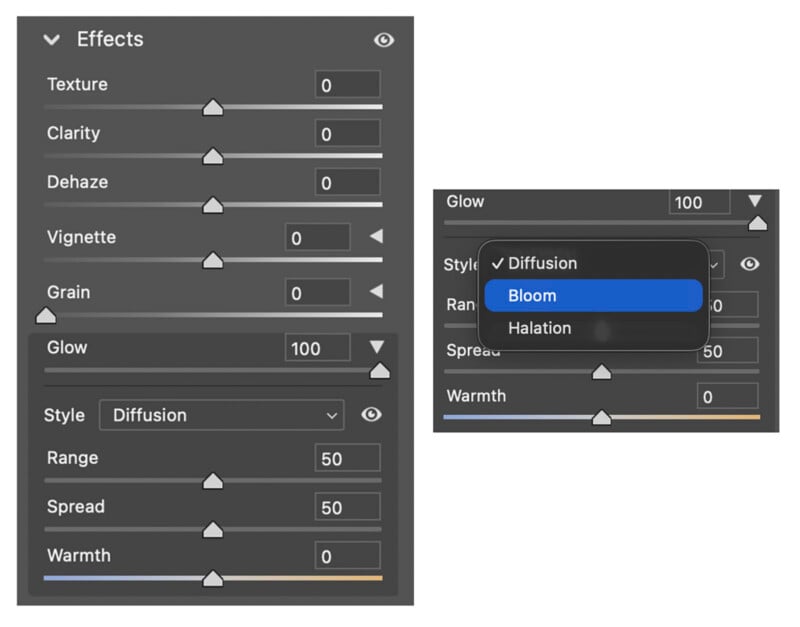
First, there is Glow itself. This is a global control for the amount of glow applied to an image. Below that are three sliders for Range, Spread, and Warmth. As Photoshop expert Greg Benz explains, Range affects which tones are targeted by the effect, Spread determines how far beyond a targeted area the effect will go, and Warmth, as expected, controls whether the tone of the effect is blue (cool) or orange (warm).
There is also a drop-down menu for style, in which users can select Diffusion, Bloom, or Halation. Diffusion is a sort of general Orton-style glow. Bloom is significantly more targeted toward the brightest areas of the frame. Halation is styled more like simulated film halation, which gives light sources a strong, red bloom effect. If you’re interested in seeing what a strong halation effect looks like with real film, check out Raf Lopes’ CineStill 800T review for PetaPixel. That film is halation-heavy. It’s a vibe.
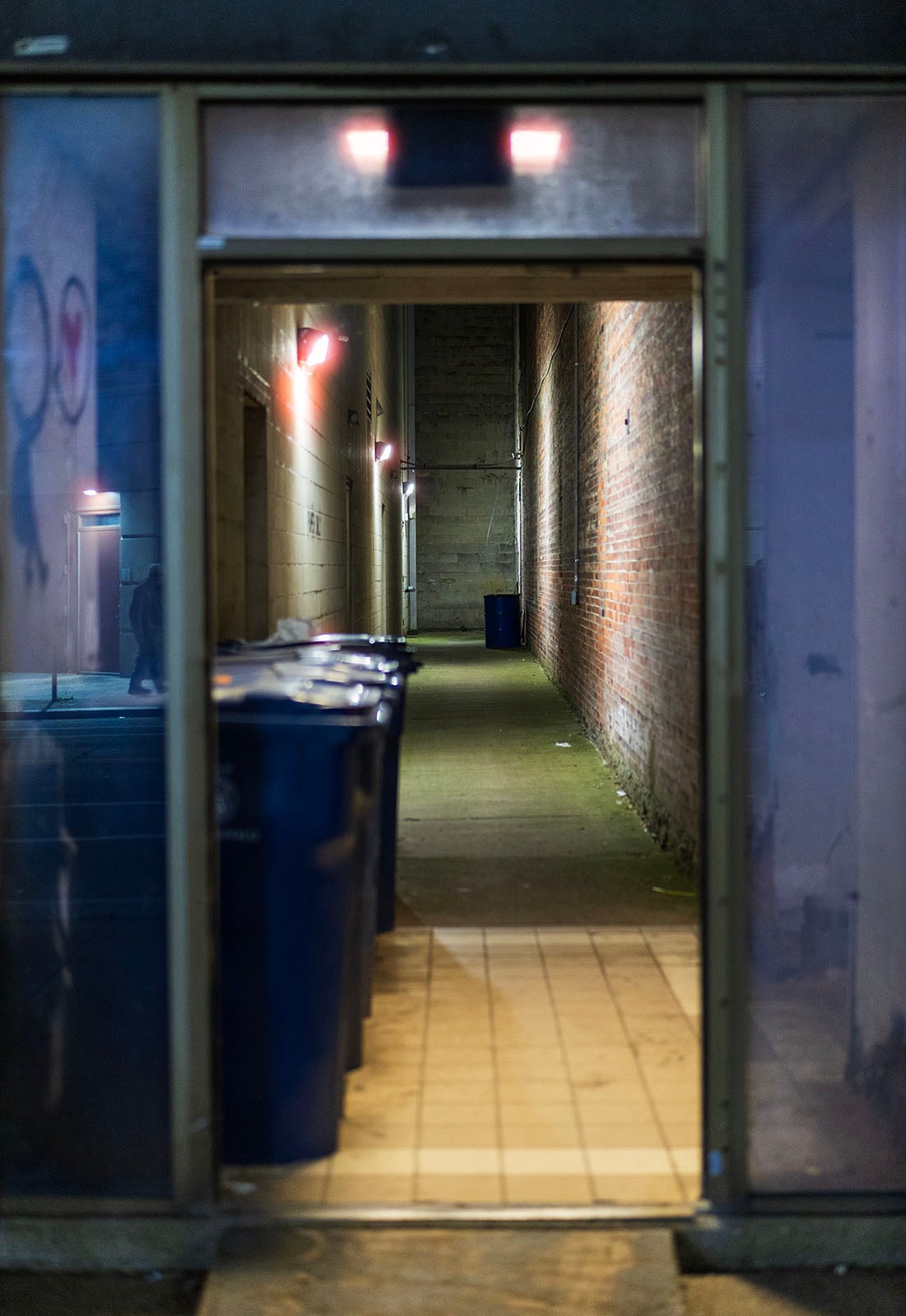
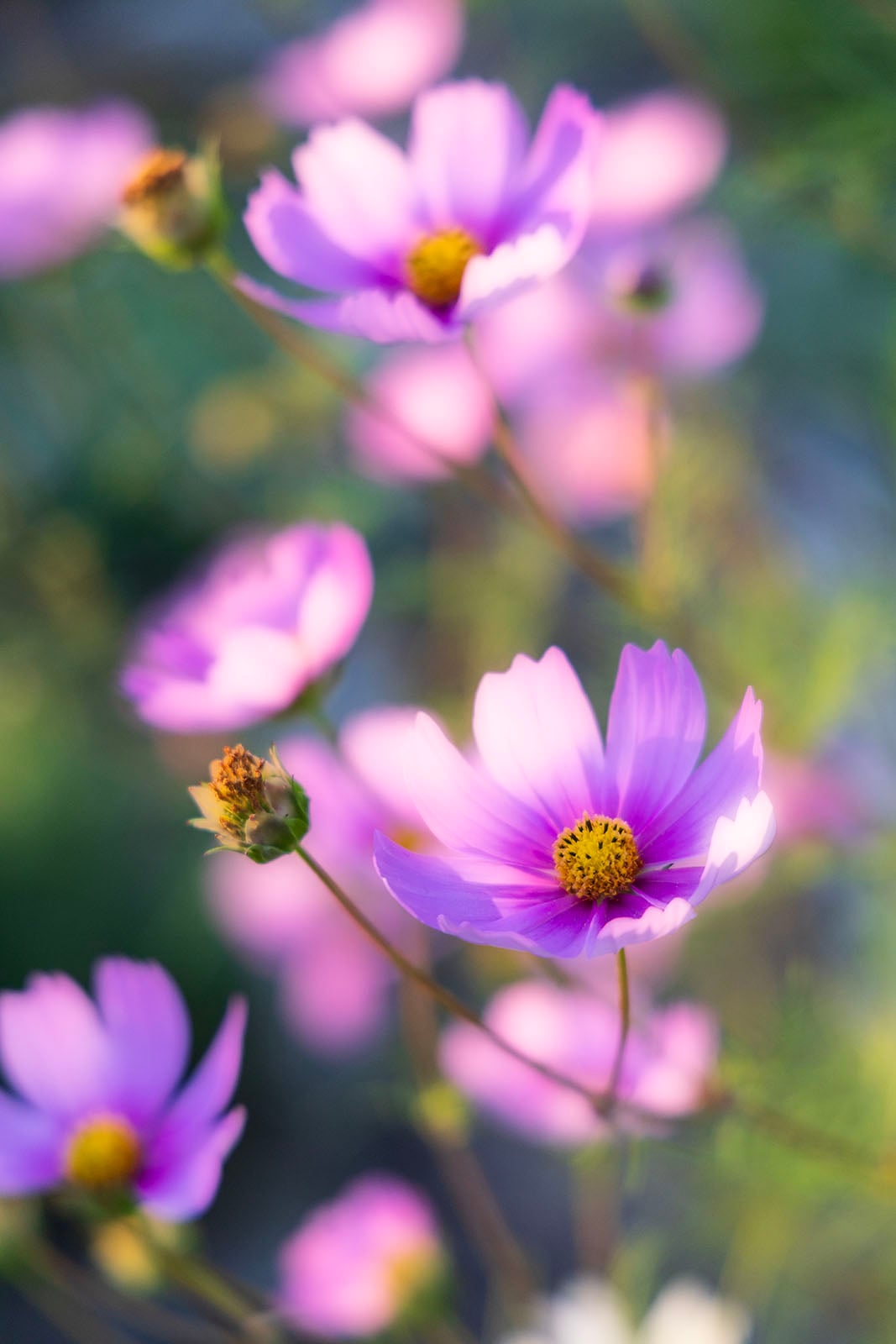
Like most special effects, it’s all too easy to go super overboard with the new Glow inside ACR. Most of the samples throughout this article are all at maximum strength to help illustrate the effect. This is certainly not what I’d do in normal situations.
You can also combine the Glow effects with the masking tools inside Adobe Camera Raw, which opens up many more possibilities for photographers looking for highly localized glow.
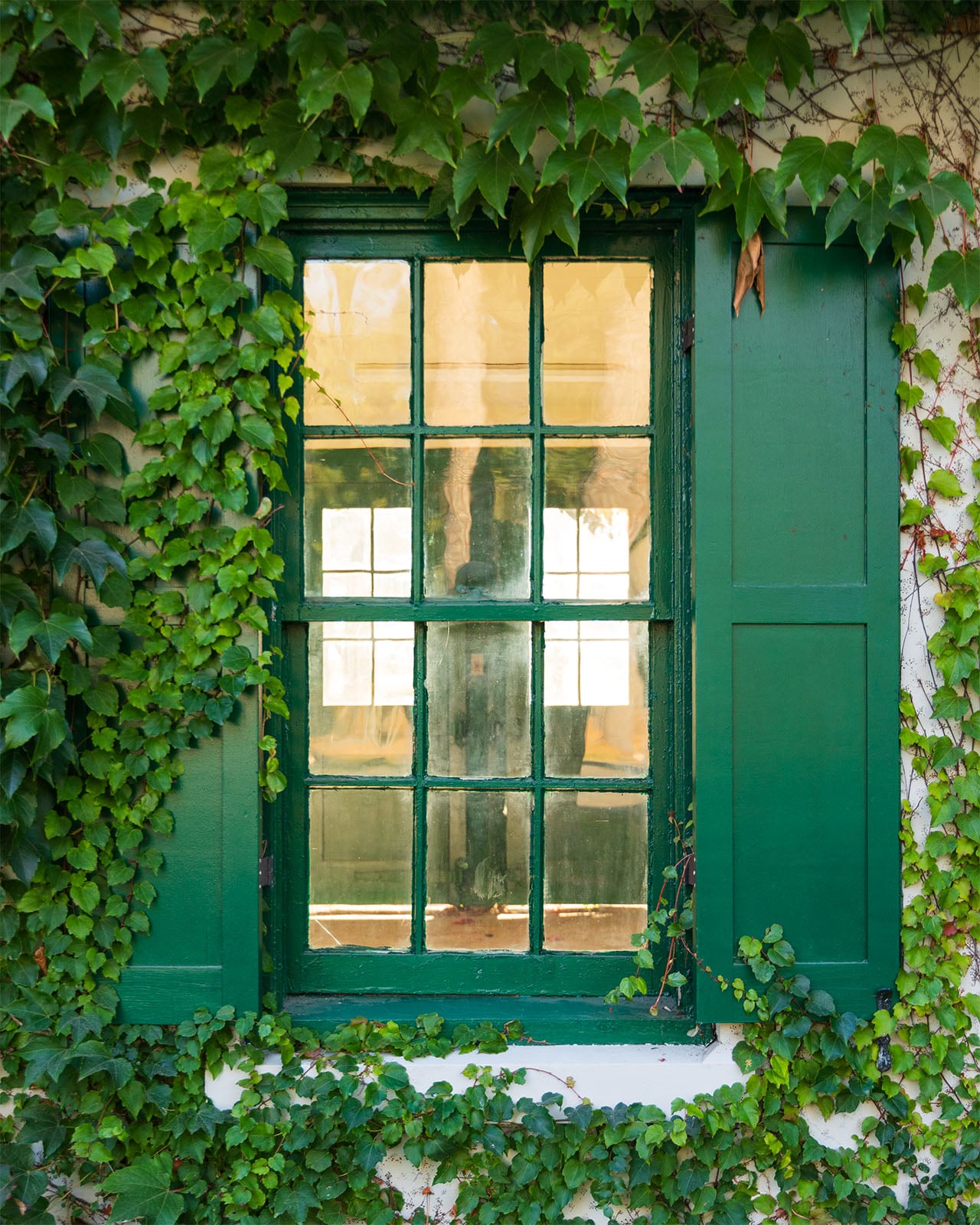
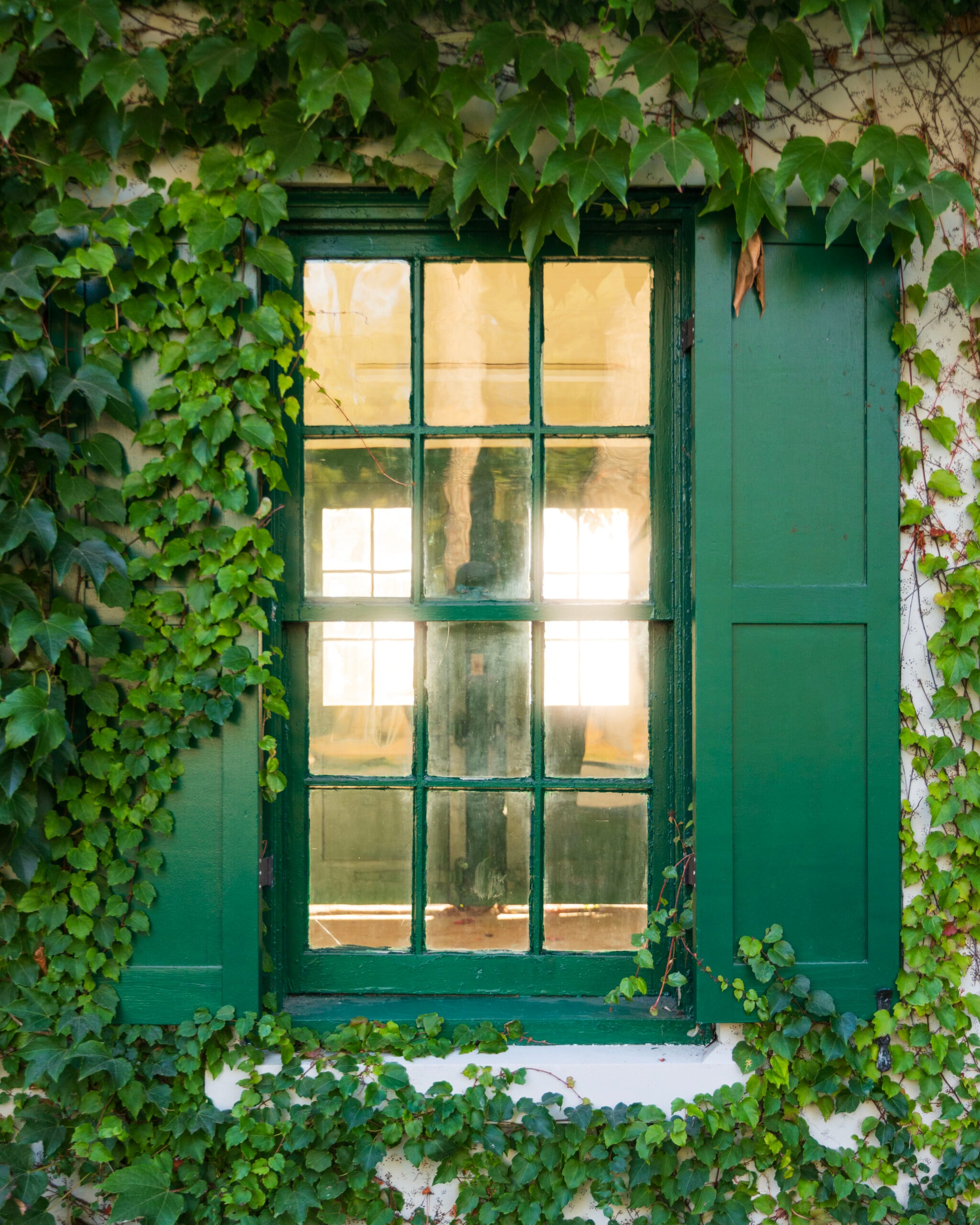
Like most special effects, Glow isn’t useful in every situation and works best with a light touch. A subtle Glow can add a bit of dreaminess to many types of photos, including landscapes and portraits.
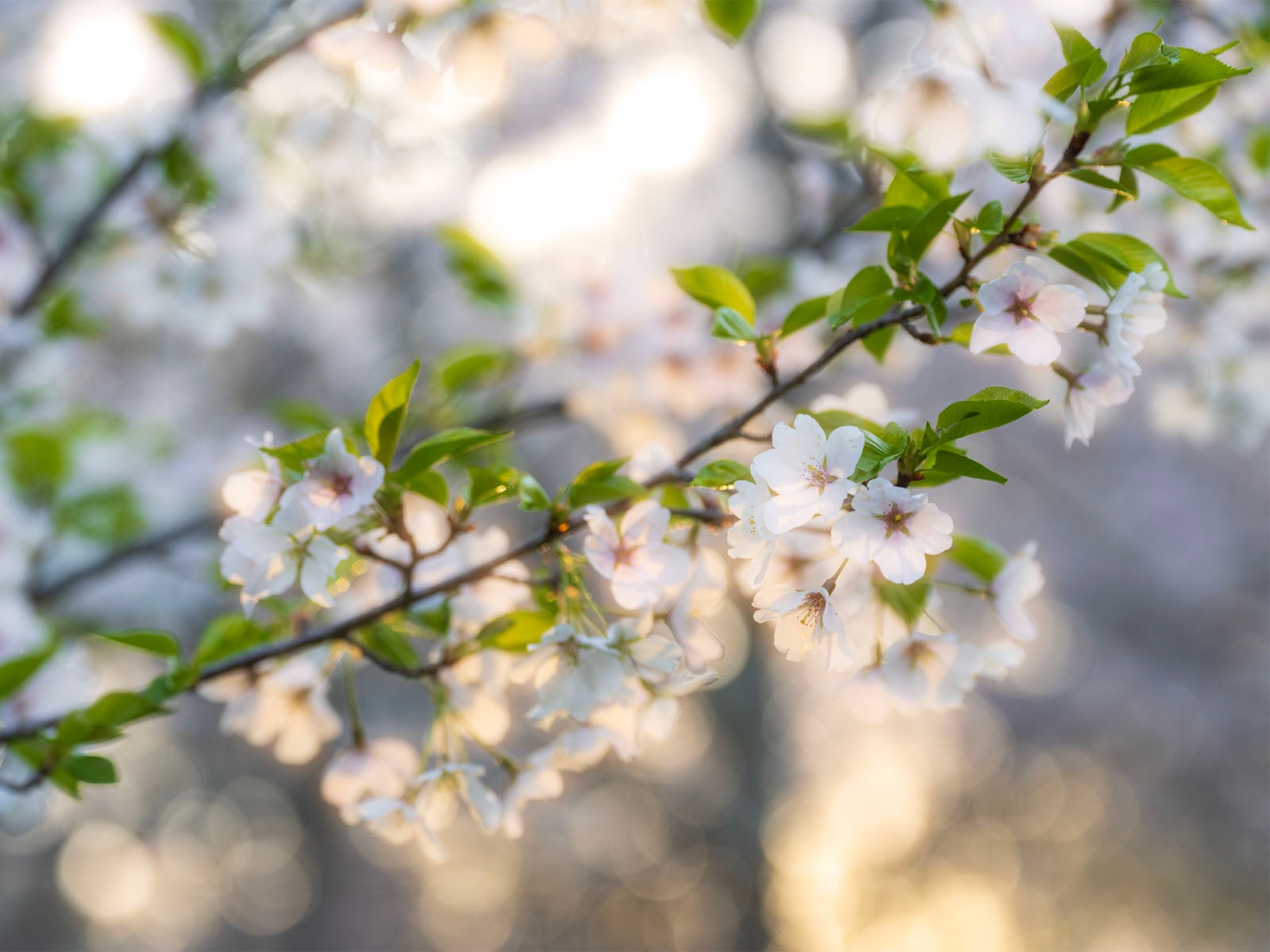
I personally like the effect for certain situations, like night photos, backlit subjects, or when I’m just seeking a bit of film-inspired style. The Halation style, in particular, is quite nice and certainly trendy right now. We’ve seen Halation pop up as an editing effect in many photo editing apps lately, especially on mobile.


Adobe Camera Raw version 18.6 is available to Creative Cloud subscribers now as a free update. It also added a new Trim feature to the Crop & Expand panel, and a new Metadata Info Panel to provide read-only details about an image inside Adobe Camera Raw. I highly recommend photographers try the new Glow sliders. It may be just what some of your RAW photos needed.
Affiliate Disclosure PetaPixel articles may include affiliate links; we may earn a commission if you buy through one.