
6 Best Image Upscalers Tested: Photo Upscaling Without the Plastic Look
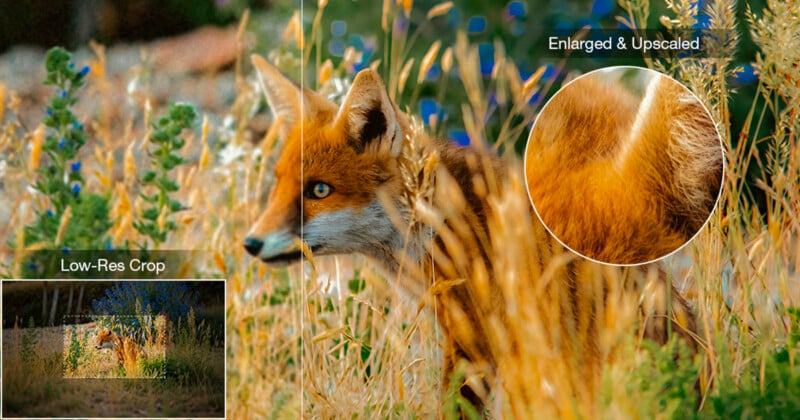
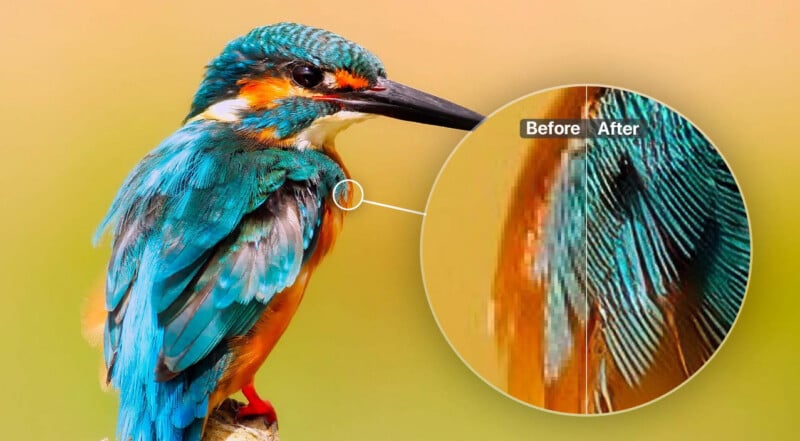
Over the last few years, image upscalers powered by AI have become remarkably good at making photos larger. The challenge is no longer whether an image can be enlarged to 4K or even 8K, it’s whether the result still looks like the original photograph.
Full disclosureThis story is sponsored by Aiarty.
Many tools can generate impressive-looking details, but not all of those details are lifelike. In my testing, the biggest difference between today’s image upscaling software isn’t resolution. It’s how they handle fidelity. Some sharpen aggressively. Others invent textures that were never there. A few can preserve the natural character of the image while still improving clarity.
To see how current image upscalers perform in real-world situations, I tested a series of difficult images that photographers frequently encounter.
How to Upscale Images to 4K & Higher without Losing Details?
In reality, enlarging a photo often reveals issues that were not visible at smaller sizes. Fine fur can turn into a soft blur. Fabric textures may disappear. Building edges can become jagged or unstable. In some cases, the result may look overly processed, with details that feel unnatural or inconsistent with the original image.
A good image upscaler won’t simply to add pixels. It should recover usable detail while preserving the original structure, texture, and character of the image.
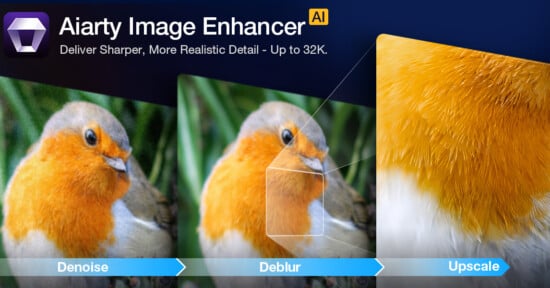
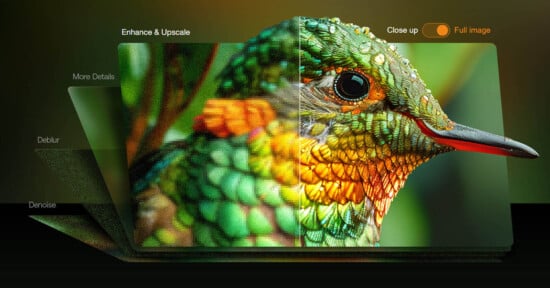
For this test, I primarily used Aiarty Image Enhancer, an AI photo enhancement tool designed for photographers who need to upscale, denoise, and refine images in a single workflow. It can increase image resolution up to 4K and beyond while maintaining realistic textures, natural colors, and overall image fidelity. Both standard image formats and RAW files are supported, so I can work directly from their original captures.
You can get the free trials of Aiarty Image Enhancer to test its AI models on your own images. This allows you to evaluate how well it handles different challenges before deciding whether it fits your workflow.
Case 1: Upscale Cropped Wildlife with Fine Detail Preservation
Wildlife photography is often captured from a distance and further cropped during editing, leaving limited pixel data for fine details such as fur and feathers when the image is enlarged.
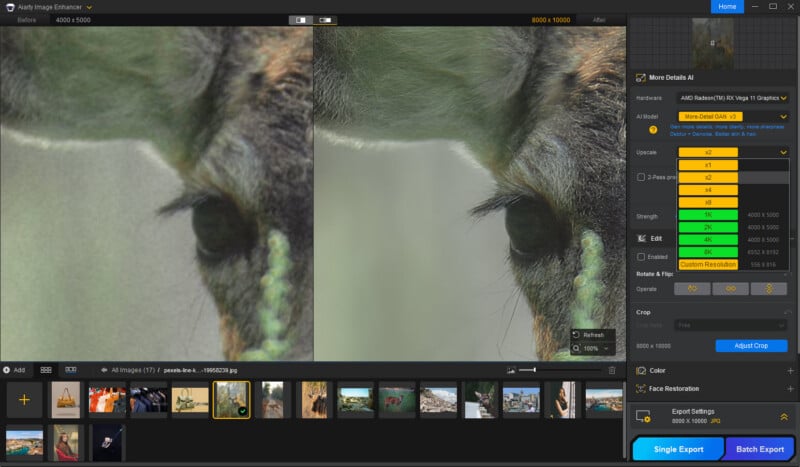
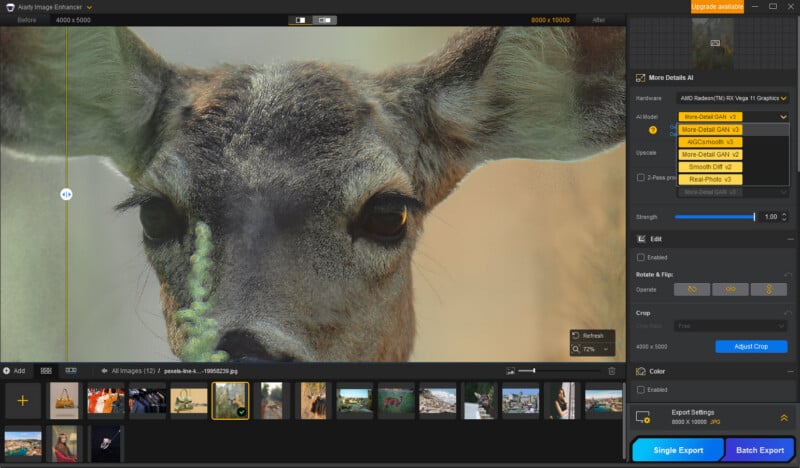
I started upscaling a high-quality deer photo taken with Sony ILCE-7M3 (4000 x 5000 pixels, shot at 1/500s, f/3.2, and ISO 100). Using Aiarty Image Enhancer, I upscaled the image with the More-Detail GAN model. The software supports standard scaling factors from 1× to 8×, along with custom scales such as 1.5× and 2.5× for more flexible output sizes.
After 2× upscaling, the fur appeared slightly more defined when viewed at 100% zoom. Some of the softness in the original image was reduced, and the overall result remained natural without looking overly sharpened.
Case 2: Upscale Low-Light Portrait with Natural Skin Detail
Low-light images—whether captured indoors, at night, or under challenging lighting conditions—often suffer from noise, soft details, and reduced clarity. These issues become even more noticeable when the image is enlarged.
For this test, I used a high-noise portrait shot on a Sony ILCE-7RM3 (5304 × 7952 pixels) at 1/60s, ISO 1000. The image showed visible grain and color noise, which made clean image upscaling more challenging.
As you can see, Aiarty Image Enhancer apparently combines upscaling and denoising in a single workflow. After upscaling, the noise is removed and image is clean. Details like hair and skin texture remain natural when viewed at a large size.
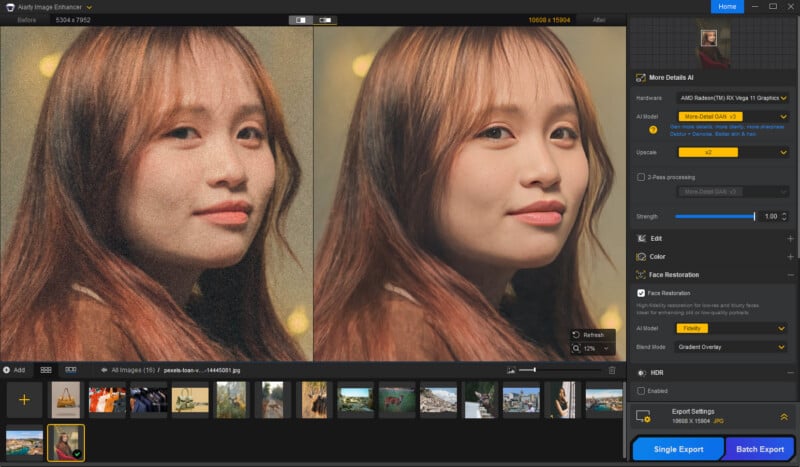
One feature I found especially useful was the Strength Slider. It lets you balance detail recovery and noise reduction to suit the image, whether you prefer to retain some of the original grain structure or produce a cleaner final result.
When working with low-resolution, heavily compressed, or noisy portrait images where facial features appear soft or slightly blurred, enabling Face Restoration made a noticeable difference. I found it particularly useful for recovering key facial details while still keeping the overall look natural.

Case 3: Upscale Low-Resolution Landscape with Sharp Lines
Older city photos, compressed web images, and low-resolution landscape shots often lose clarity when viewed at larger sizes. Fine architectural details become soft, distant signs turn unreadable, and building edges can appear blurred or jagged.
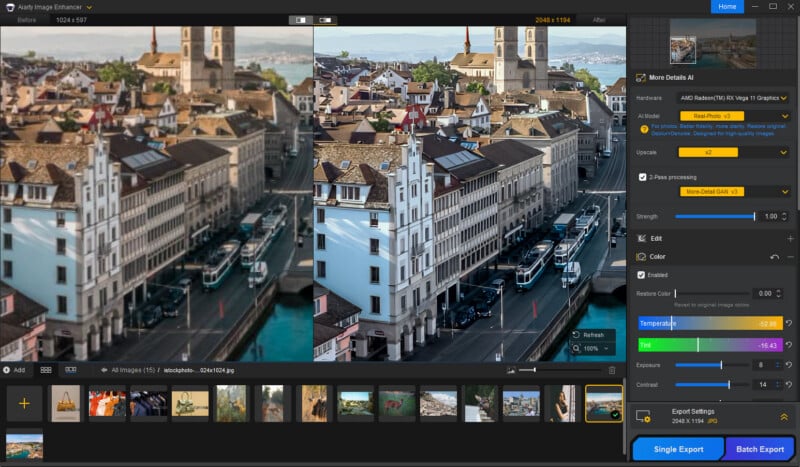
For this old 1024 × 597 city image, I used Aiarty Image Enhancer with the Real-Photo model for image upscaling. After enlarging the image and zooming in, building edges looked cleaner, and details such as windows and lines became easier to see.
For low-resolution or heavily compressed images, I found the 2-Pass Processing option helpful for recovering additional detail. I also used the built-in Color panel to make a few adjustments to the shadows, highlights, and overall color balance, which helped improve the appearance of the image after upscaling.
Case 4: Upscale Commercial Photos with Crisp Material Texture
Commercial and e-commerce images often need to be displayed at larger sizes for product listings, marketing materials, or print use. In these situations, maintaining detail during image upscaling becomes important.
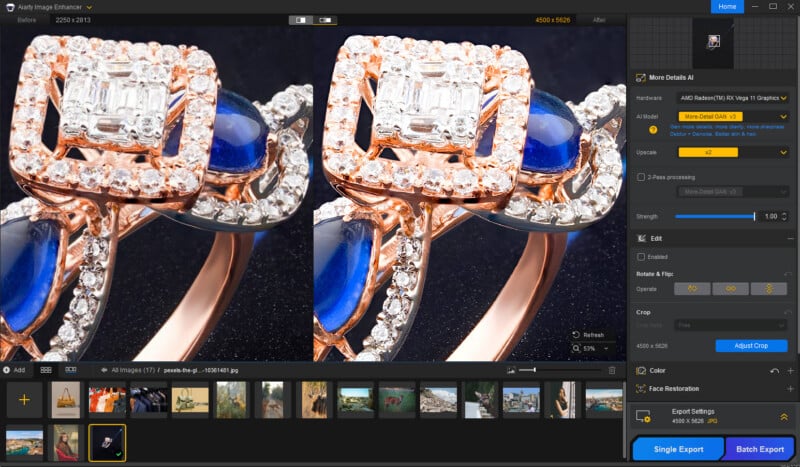
After upscaling this jewelry photo (2250 × 2813) using Aiarty Image Enhancer, small details around the edges and surface textures were easier to see when zooming in, while reflections appeared a bit clearer in the final image.
I also found the batch processing feature useful when working with multiple product photos. Being able to upscale several images in a single workflow can help streamline larger e-commerce or catalog projects.
Readers who want to test the software can start with the free trial version. Upscaling results can vary quite a bit depending on the source image, so there’s no substitute for testing it against your own workflow.
At the time of writing, Aiarty is offering a 49% discount on its Lifetime License, reducing the price from $155 to $79.
Available options include:
- Cross-platform: Windows + Mac
- 3 Windows PCs
- 3 Mac computers
One thing I appreciate is that the license isn’t tied to a recurring subscription. Lifetime purchases include future software updates, technical support, and access to newly released AI models without additional renewal fees.
Other Image Upscalers Worth Considering
Aiarty wasn’t the only tool I looked at while working on these images. Depending on your workflow, budget, and the types of photos you typically work with, there are several other image upscalers worth considering. Some prioritize maximum detail recovery, others focus on print output, cloud-based convenience, or simply being free to use.
Before getting into the individual tools, here’s a quick overview of how the main options compare for upscaling images to 4K and beyond.
| Tool | Best For | Pricing | Features |
|---|---|---|---|
| Topaz Gigapixel AI | High-end detail-focused image upscaling | $29/mo Subscription (Perpetual plans discontinued) | AI-driven detail reconstruction; widely used in pro photo workflows. |
| Aiarty Image Enhancer | High-Fidelity Upscaling with Details | $79 Lifetime License (49% Off Promo) | Details recover, manual control, quick edits |
| Upscayl | Image Upscaling with Local Model Control & Customization | Free (Open-Source) | Local processing with multiple model options. |
| Adobe Super Resolution | Fast RAW Upscaling Inside ACR/Lightroom | Included in Creative Cloud ($10-$55+/mo) | Integrated RAW enhancement inside Adobe ecosystem. |
| ON1 Resize AI | Large-Format Print Geometry & Framing | $69.99 Standalone License / Multi-App Bundles | Print-oriented resizing and geometry control. |
| Let’s Enhance | Automated cloud-based image upscaling for quick outputs | Starts at $9-$12/mo for 100 credits | Browser-based automated enhancement workflow. |
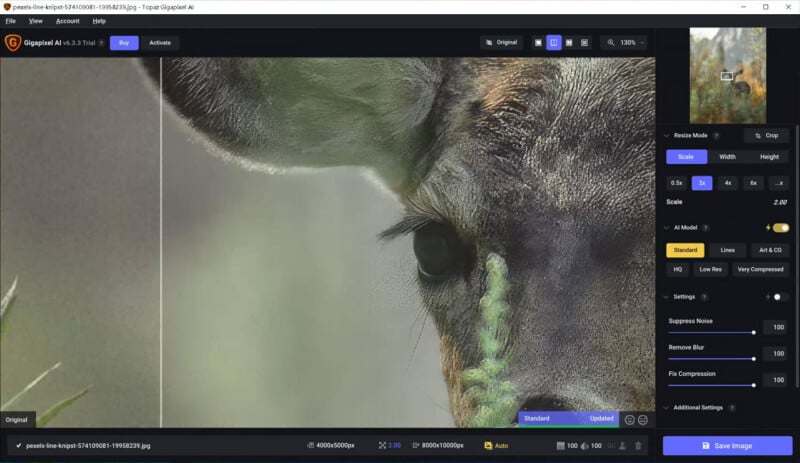
Topaz Gigapixel AI: High-end Detail Restoration Upscaling
For photographers need heavy-duty resolution scaling and get decent hardware, Topaz Gigapixel is the no-brainer choice. It has 9 highly refined models that are very useful for upscaling different photos, such as low-res scans, and old photos.
In my experience, most models deliver very strong results. The more advanced generative models, such as Wonder and Standard Max, produce highly detailed and natural-looking outputs, even at higher scaling factors. Processing times can vary depending on model selection and hardware configuration, especially with more advanced settings.
At the same time, certain creative models offer different interpretations of detail, which can be useful when experimenting with different visual styles or when absolute consistency is not the primary goal.
Aiarty Image Enhancer: High-Fidelity AI Upscaling with Detail Preservation
Aiarty Image Enhancer is an AI-powered image upscaler and enhancement tool designed to increase image resolution while preserving natural textures and fine detail. In my tests, I used it across a mix of wildlife, portrait, and low-light photography to see how it performs on real-world images with different levels of noise, softness, and compression.
One thing I noticed during use is that it works not only as an image upscaler, but also as a detail recovery tool. Beyond increasing resolution, it helps reconstruct finer textures in a way that generally keeps the output looking close to a natural photographic result, without over-sharpened digital halos and waxy “AI plastic look”.
It also provides adjustable controls such as Strength, Face Restoration, color adjustment, and an AI eraser. In practice, these tools help fine-tune the final results based on different image types and output needs.
Upscayl: Free Open-Source Lightweight Upscaler
Upscayl is a popular open-source option on Reddit and GitHub. It works on Vulkan-compatible GPUs and relies on generalized open-source backbones (like standard RealESRGAN models) to deliver robust upscaling quality for most photos.
For the tech-savvy photographer who likes to peek under the hood, Upscayl possesses a massive competitive edge: model customization. If you know how to fine-tune your workflow, it can yield results that rival, and occasionally beat, Topaz in specific scenarios.
In my tests, Upscayl doesn’t get noise reduction along with upscaling. To get most out of the software, I need to add custom models, like RealESRGAN_General_WDN (With DeNoising). So it’s especially appealing for users who prefer a more hands-on, configurable workflow.
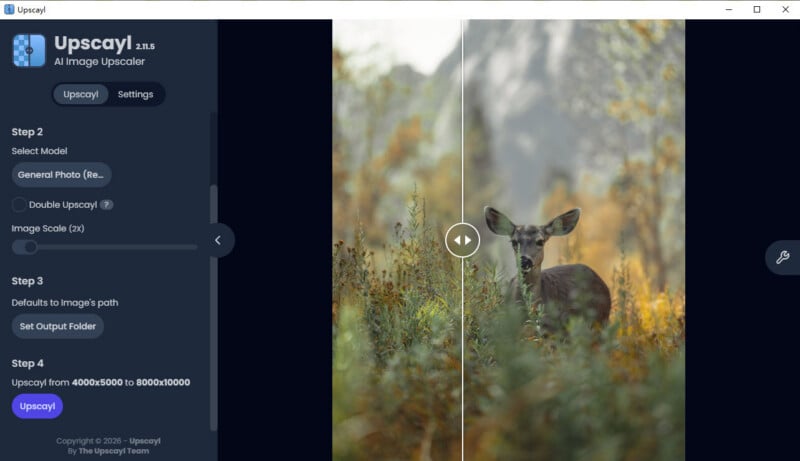
Testing Upscayl 2x upscaling, General Photo model
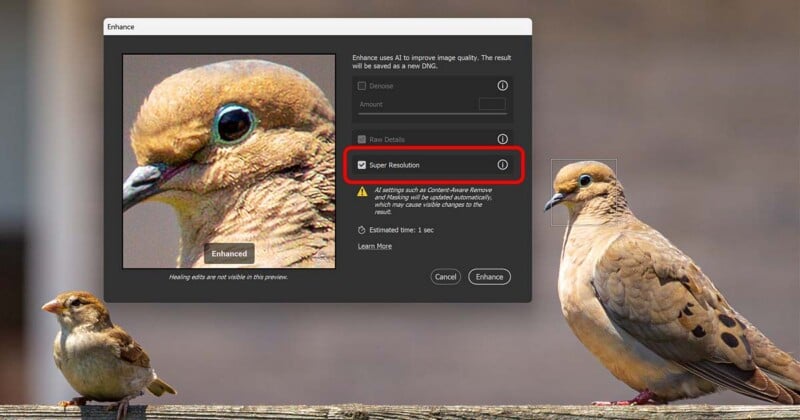
Adobe Super Resolution: Professional RAW Photo Upscaling
If you’re working with RAW photos or have clean files, and you just want a quick, predictable 2× upscale, Adobe Super Resolution remains one of the most convenient options available. Deeply integrated into the Lightroom and Camera Raw eco-system, it relies on machine learning trained on millions of high-res image pairs to double your horizontal and vertical resolution, generate a big “Enhanced DNG” file.
It performs especially well with clean RAW files that already contain good underlying detail. As a RAW-focused enhancement tool, it is optimized for consistency and integration within the Adobe ecosystem, a practical fit for many professional workflows.
ON1 Resize AI: Best for Large-Format Prints
ON1 Resize AI can be a budget alternative to some subscription options. It excels in producing clean, large-format enlargements with consistent geometry. When upscaling images for posters, canvas prints, or large-format output, ON1 generally delivers predictable results and preserves overall image structure well.
In testing, output consistency remains stable across different enlargement scenarios, a feature that works well for photographers preparing images for physical reproduction. Some users also explore different versions of the software within ON1’s ecosystem depending on their specific workflow requirements.
Let’s Enhance: One-Click Cloud Image Upscaling
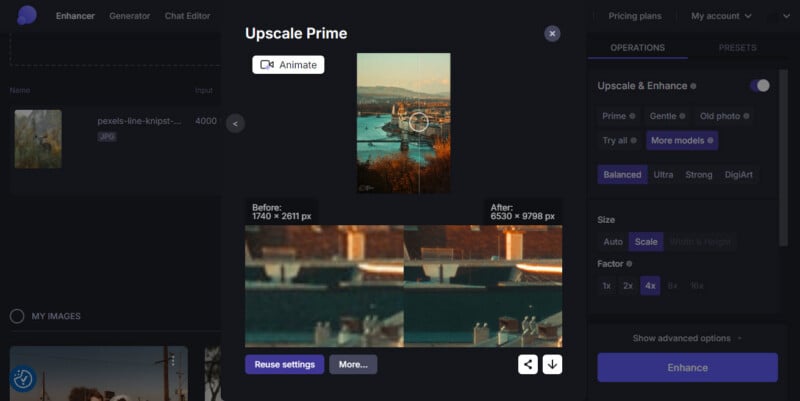
If you prefer to avoid downloading heavy software locally and have the bandwidth to spare, meaning you aren’t constantly wrestling with massive RAW files, then cloud-based platforms like Let’s Enhance is a solid choice.
The cloud image upscaler contains 7 models and supports upscaling up to 16x. In my test, it does a reliable job upscaling and the 4K results are impressive. Different models provide different rendering styles, so you will want to experiment with different settings depending on your subject matter.
As a cloud-based service, it is particularly useful for flexible, on-demand processing workflows where convenience and accessibility are priorities.
Final Takeaway
After testing a range of image upscalers across different types of photos, I found that results largely depend on how each tool fits into a specific workflow. Some tools are optimized for high-end detail reconstruction, others are better suited for RAW-based editing, print output, or lightweight cloud processing.
In general, Topaz Gigapixel AI is often used for high-end detail reconstruction, Adobe Super Resolution fits well into RAW-based editing in Lightroom, ON1 Resize AI focuses more on print-oriented output, Upscayl is a flexible open-source option for personal or experimental workflows, and Let’s Enhance provides a convenient cloud-based approach for quick results.
Aiarty Image Enhancer also sits in this space as a general-purpose image upscaler and enhancement tool, particularly for users looking to balance resolution increase with natural-looking detail.
Ultimately, the best choice depends less on a single “best” tool and more on how each one fits into a photographer’s specific workflow and output needs.
Full disclosureThis story is sponsored by Aiarty.
Affiliate Disclosure PetaPixel articles may include affiliate links; we may earn a commission if you buy through one.