
Enhance Old, Low-Quality Footage and Photos: An All-in-One Workflow with VideoProc
As photographers and videographers, we all encounter images and footage that fall short of what we envisioned — a noisy low-light shot, an older 1080p clip from a DSLR viewed on a 4K timeline, or a tightly cropped photo that lacks the detail needed for a large print.
Full disclosureThis article was brought to you by VideoProc.
These files aren’t necessarily beyond use, but getting the most out of them can take time and careful adjustment. AI can help streamline some of that work, particularly tasks such as denoising, sharpening, and upscaling, while leaving creative decisions in the hands of the photographer or videographer. One example is VideoProc Converter AI, which provides AI-powered tools for enhancing both photos and video, with an emphasis on improving clarity and resolution while retaining natural-looking detail.
VideoProc Converter AI at a Glance
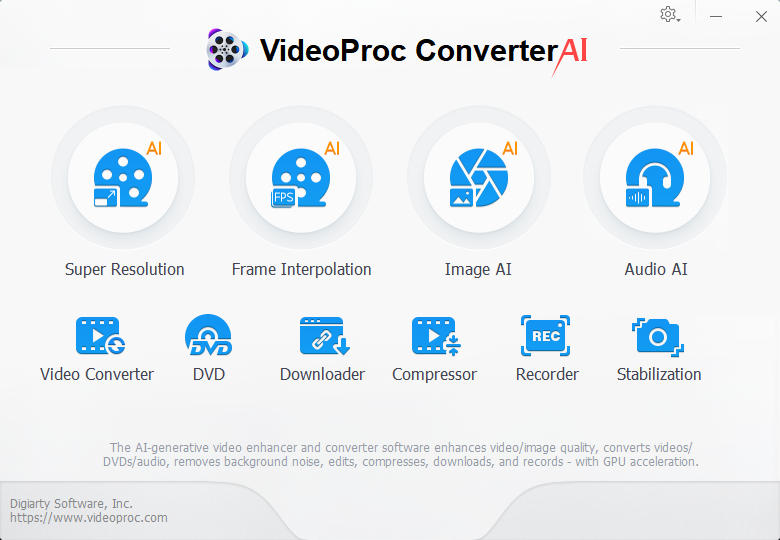
VideoProc Converter AI is a full “video + image + audio” toolkit equipped with cutting-edge AI enhancement tools. It allows you to upscale blurry shots to 4K/8K while prioritizing the preservation of original textures and edge details over excessive artificial smoothing, alongside stabilization, frame interpolation (FPS boosting), noise reduction, colorization, etc. It also serves as a professional-grade converter, compressor, downloader, recorder, and editor to handle batch-heavy tasks.
Running locally on a desktop, the software leverages Level-3 GPU acceleration to handle large videos and bulk photo processing efficiently, avoiding the speed caps and privacy risks associated with browser-based or cloud tools.
Special Offer: For editors looking to avoid monthly subscriptions, VideoProc Converter AI is currently available as a Lifetime License starting at $54.95 (down from $89.95) for 1 PC/Mac, or $79.95 (50% off $159.95) for a 5-Device Family License. This includes permanent access to AI upscaling features and free future model upgrades.
Preserving Authentic Texture While Enhancing Quality
For the PetaPixel community, more pixels aren’t the goal — better pixels are. While many AI upscalers suffer from an artificial aesthetic, VideoProc Converter AI’s kernel is designed to respect the optical reality of the lens and the sensor’s natural character.
Upscaling without Sacrificing Fine Texture
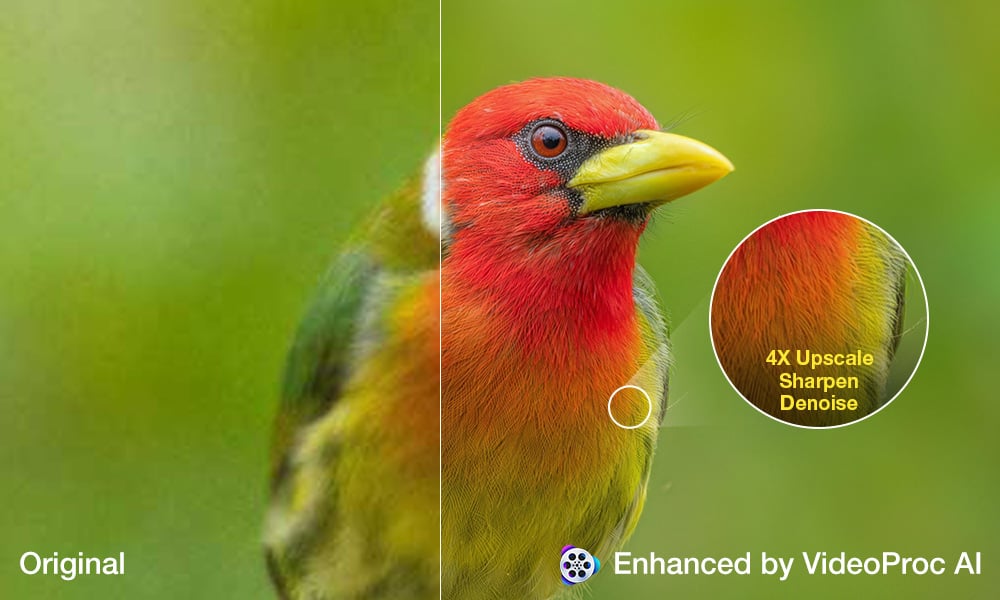
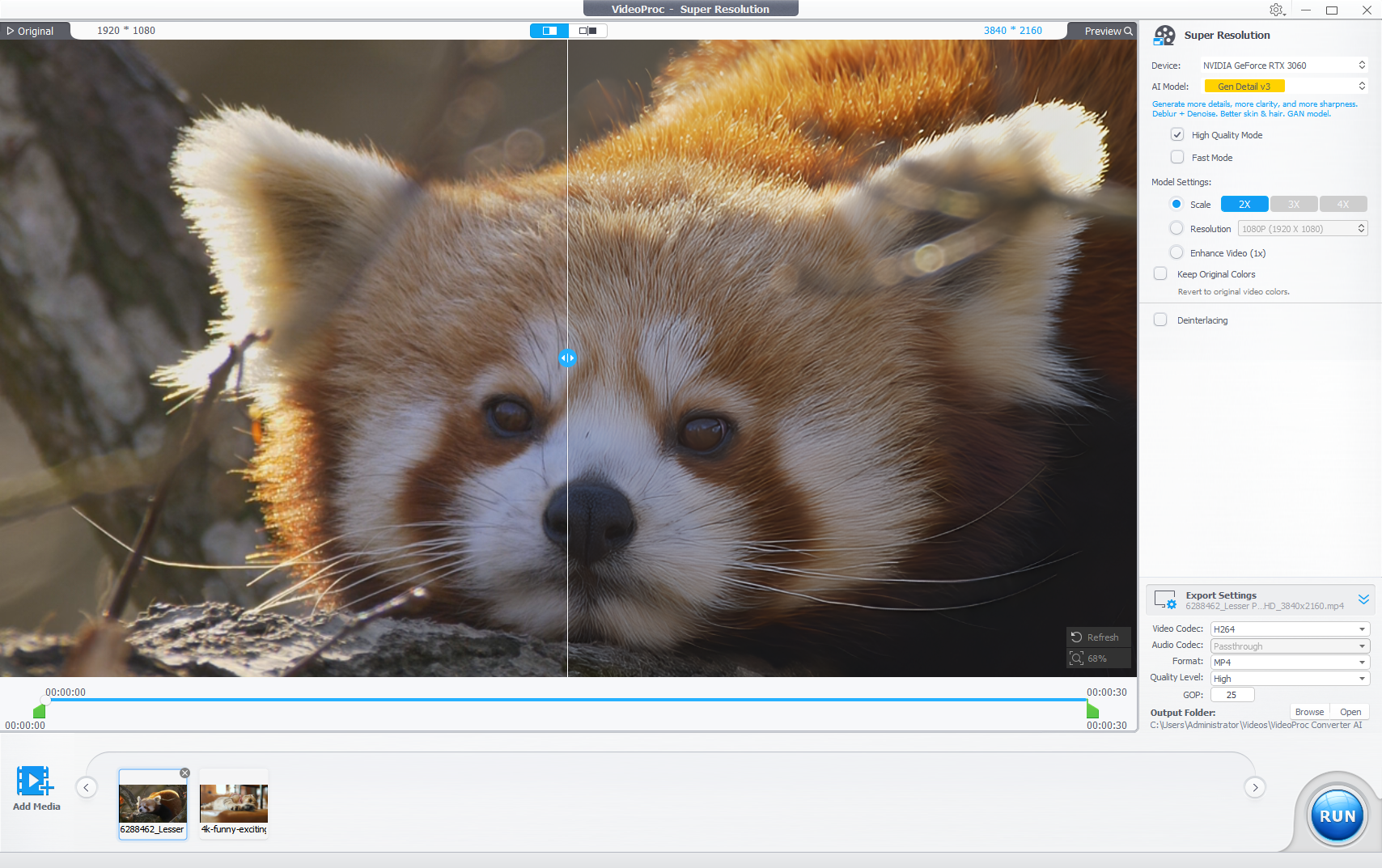
Whether you are reviving archived footage or trying to prep a heavily cropped Fujifilm, Sony, or Canon photo for print, or attempting to fit a low-res clip into a modern 4K timeline without it looking pixelated, the challenge is the same: how do you add detail where none exists? Most generic AI tools guess pixels by smoothing them over, resulting in the dreaded plastic look. VideoProc Converter AI’s Super Resolution model identifies specific textures — fabric, skin, foliage — and reconstructs them while upscaling video and images by 2X, 3X, or 4X. Unlike basic bicubic upscaling, VideoProc Converter AI’s models are trained on millions of high-quality samples to understand the micro-contrast of real-world textures.
In our tests, even at a 400% upscale, the software manages to retain a natural grain structure. It doesn’t just make the image larger, it feels like a high-fidelity sensor upgrade for your older files, pushing resolutions up to 4K for video and up to 8K or higher for images, without making them look like digital paintings.
Clean High-ISO Noise without Killing Detail
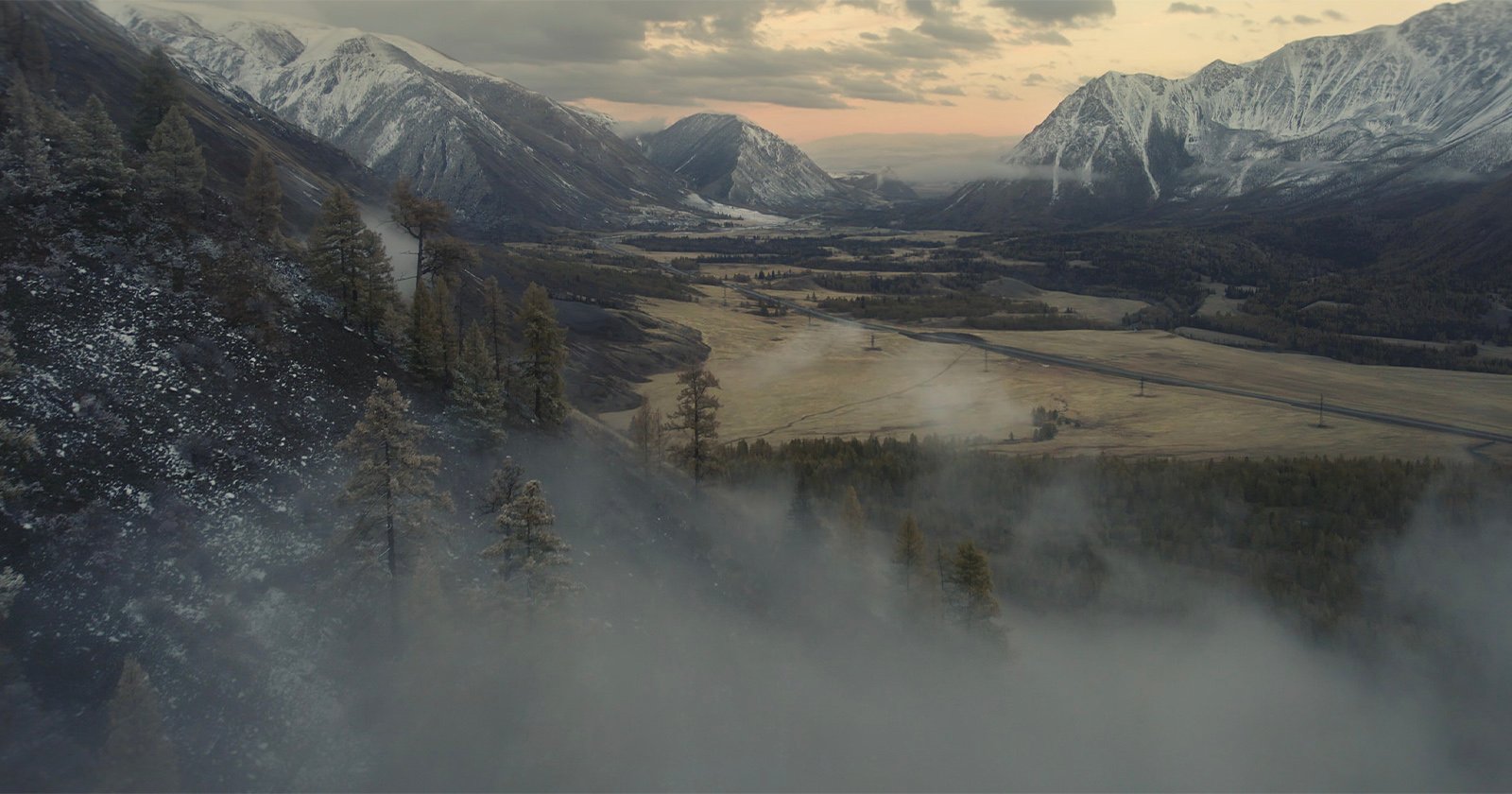
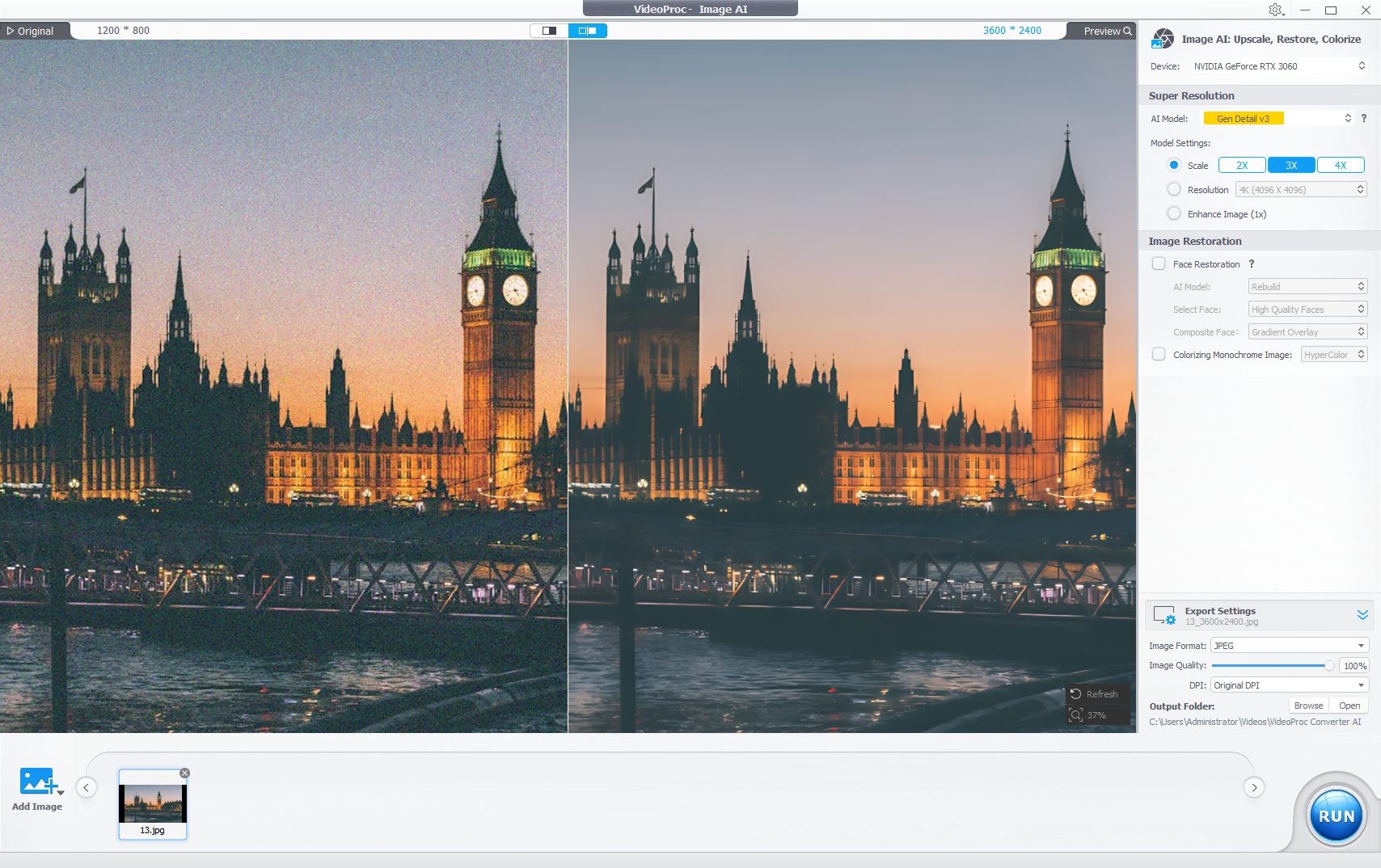
Low-light events, indoor ceremonies, or drone footage shot in twilight often suffer from aggressive noise. Traditional denoisers usually smear the image to hide the artifacts, turning a crisp suit or a subject’s face into a blurred mess. VideoProc’s AI Enhancer recognizes the difference between noise and micro-contrast. It reduces the “salt and pepper” artifacts while preserving sharp edge definition. This can be particularly useful for 10-bit vlogs or 4:2:2 footage where you need the shadows to be clean but the skin to remain textured. It retains that sensor-like grain that adds character, rather than suffocating the shot in a heavy-handed blur.
Reconstruct Details beyond Simple Deblurring
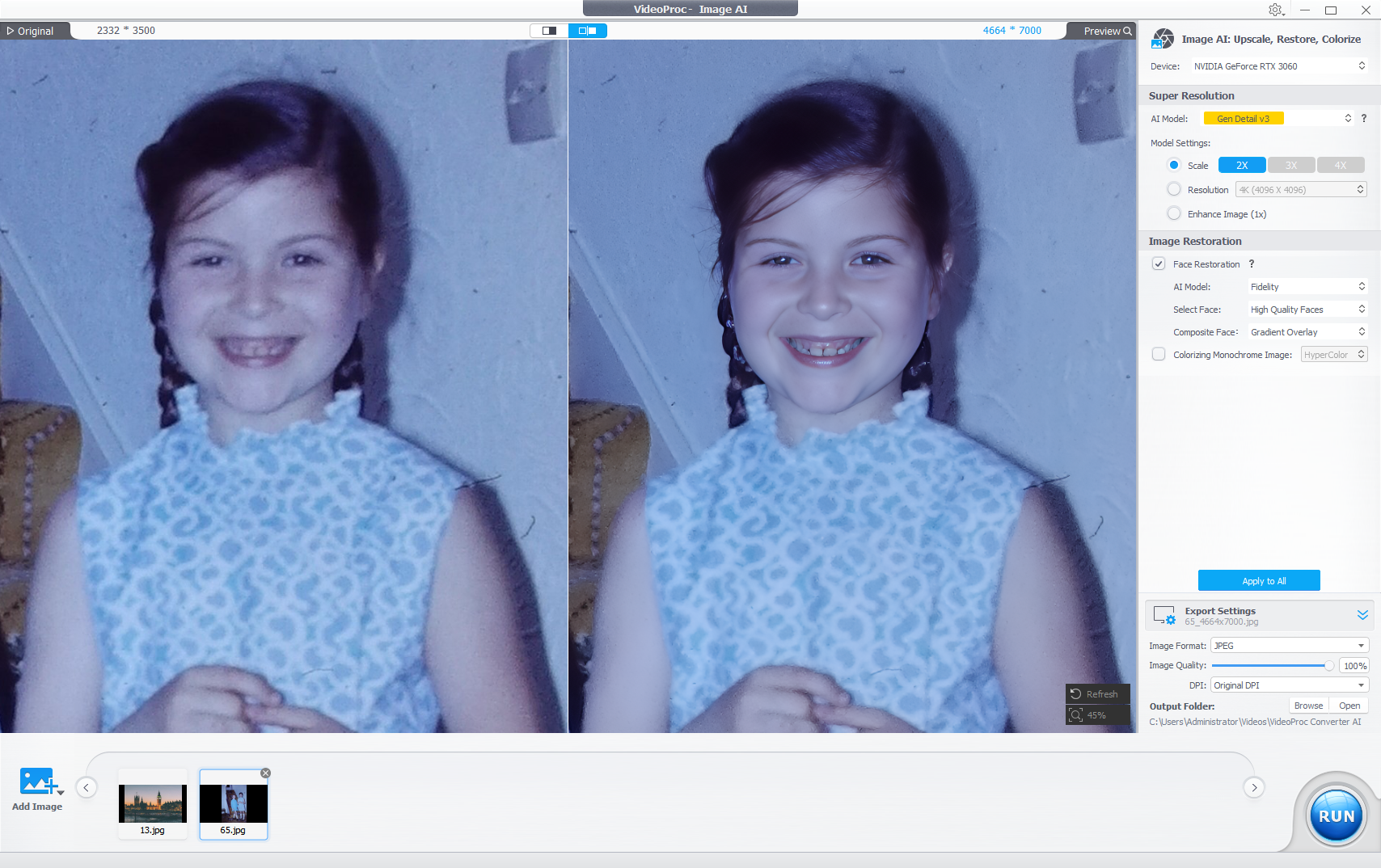
Unlike traditional sharpening that overlays white halos on blurred edges, VideoProc Converter AI’s AI Enhancement further removes blur while rebuilding lost details. By analyzing the surrounding pixels and the movement vector, it reconstructs the fine lines of a subject’s eyes or the intricate patterns of a landscape. It’s the difference between fake sharpness and restored clarity.
How to Enhance Videos and Images in VideoProc Converter AI
In practice, integrating AI enhancement into a workflow is less about following fixed steps and more about making the right adjustments at the right stage. Here is how to enhance video quality with VideoProc Converter AI:
- Download VideoProc Converter AI from the official website and install it on your computer. Click the “Super Resolution” or the “Image AI” on the main interface to open the AI Video Enhancer or AI Image Enhancer you want.
- Load Video/Image(s): Drag and drop your problem files (RAWs, HEIC, 4K H.264/HEVC clips) into the interface. The batch processing handles heavy loads effortlessly.
- Choose AI Model: On the right-hand panel, choose the appropriate AI model based on your video/image type. VideoProc Converter AI includes four AI models in the Super Resolution, each tailored for different use cases. We recommend using the latest two models:
- Gen Detail V3: This model generates more details, delivering greater clarity and sharpness. It improves details of skin, hair, fur, and overall perceptual quality. It is best for enhancing media with rich textures and details.
- Real Smooth V3: This model is trained to restore imperfect images or videos and eliminate flaws for better fidelity, enhanced clarity, and a smoother appearance. It is best for removing noise, restoring flaws, and upscaling real-world or AI-generated content.
- In addition, Anime and Zyxt models are optimized for animated content and lightweight hardware environments. Each model is designed for a specific type. Choosing the right model can make a noticeable change, and testing multiple models is often necessary.
- Adjust Parameters: If you don’t want any upscaling but just want to remove blur, noise, and compression artifacts, choose the Enhance Image/video (1x), etc.; If you are going to upscale a video or image, scale to 2x, 3x, or 4x, or choose the desired resolution like 2K or 4K.
- Hit Run: Select your codec (HEVC/H.264/AV1/Prores) and ensure the GPU is active. This offloads the heavy lifting from your CPU to your NVIDIA, AMD, or Intel GPU, making 4K AI rendering a matter of minutes rather than hours. If the software defaults to CPU processing, ensure your GPU drivers are up to date to unlock maximum performance. Then hit “RUN” to begin the enhancement.
Pro tips:
- Use the preview window to find a balance where the enhancement improves clarity and detail without introducing an overly processed look.
- Select High Quality for maximum fidelity, or Fast Mode when processing speed takes priority.
- Apply 2x upscaling twice instead of 4x upscaling if needed, such as for delivery or cropping.
- Use GPU acceleration where available to handle large volumes efficiently.
Image and Video Enhancement Examples
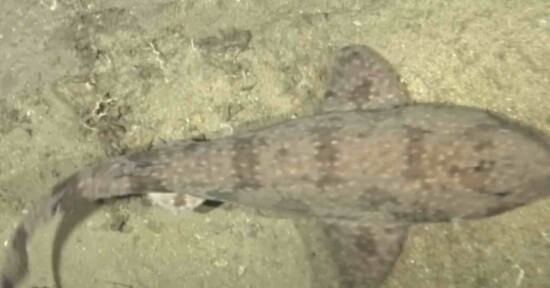
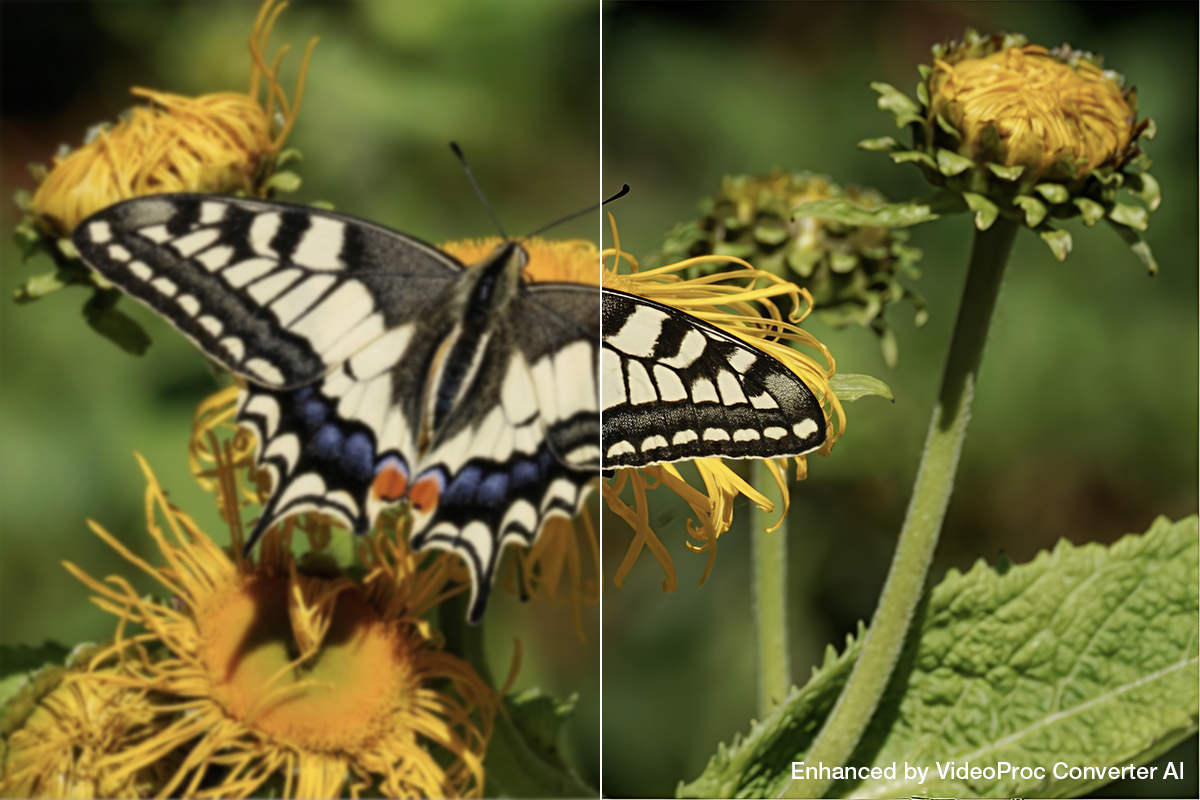
Upscaling and Deblurring: See the intricate details of a butterfly on a flower enhanced from 1080p (left) to crisp 4K (right) with VideoProc’s AI Super Resolution.
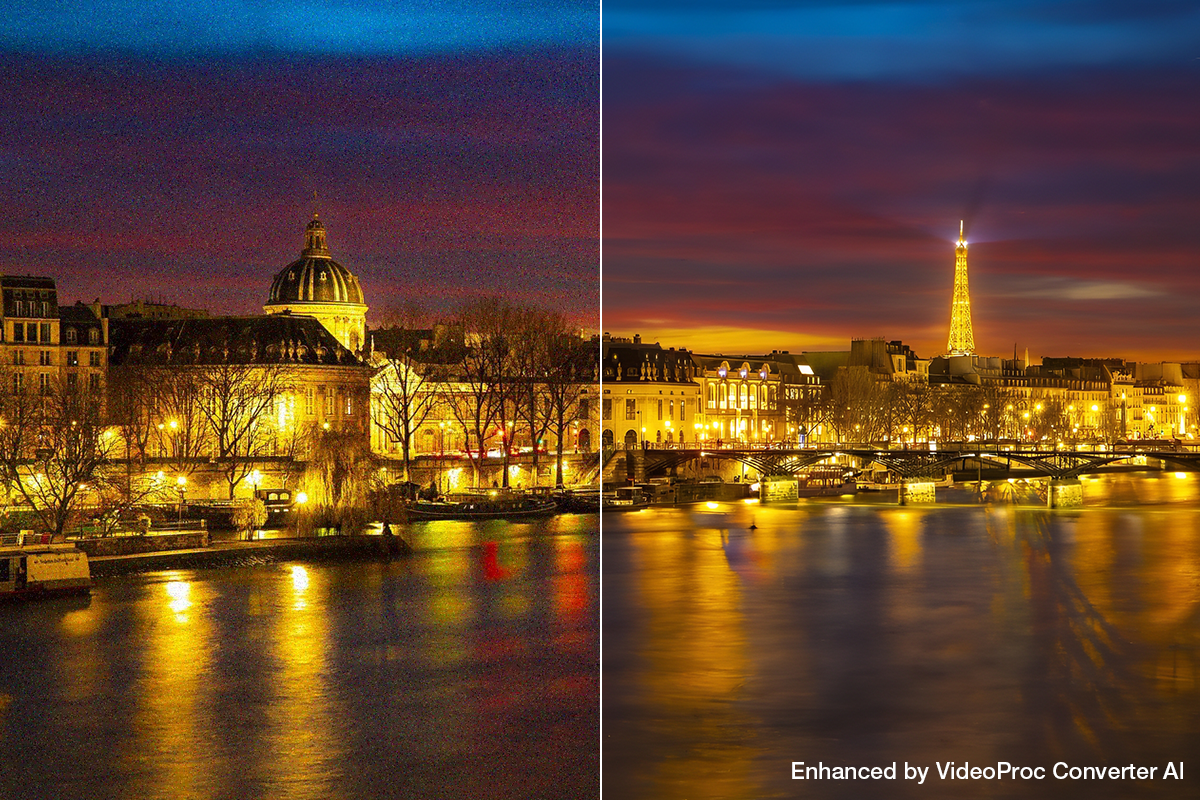
Denoising and Enhancement: 100% crop of a nightscape shot at ISO 12,800 before (left) versus after processing with VideoProc Converter AI (right).
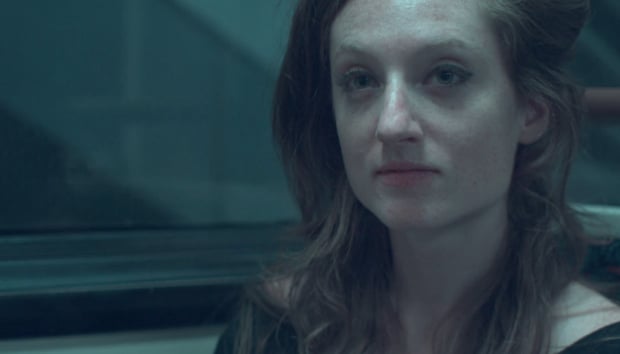
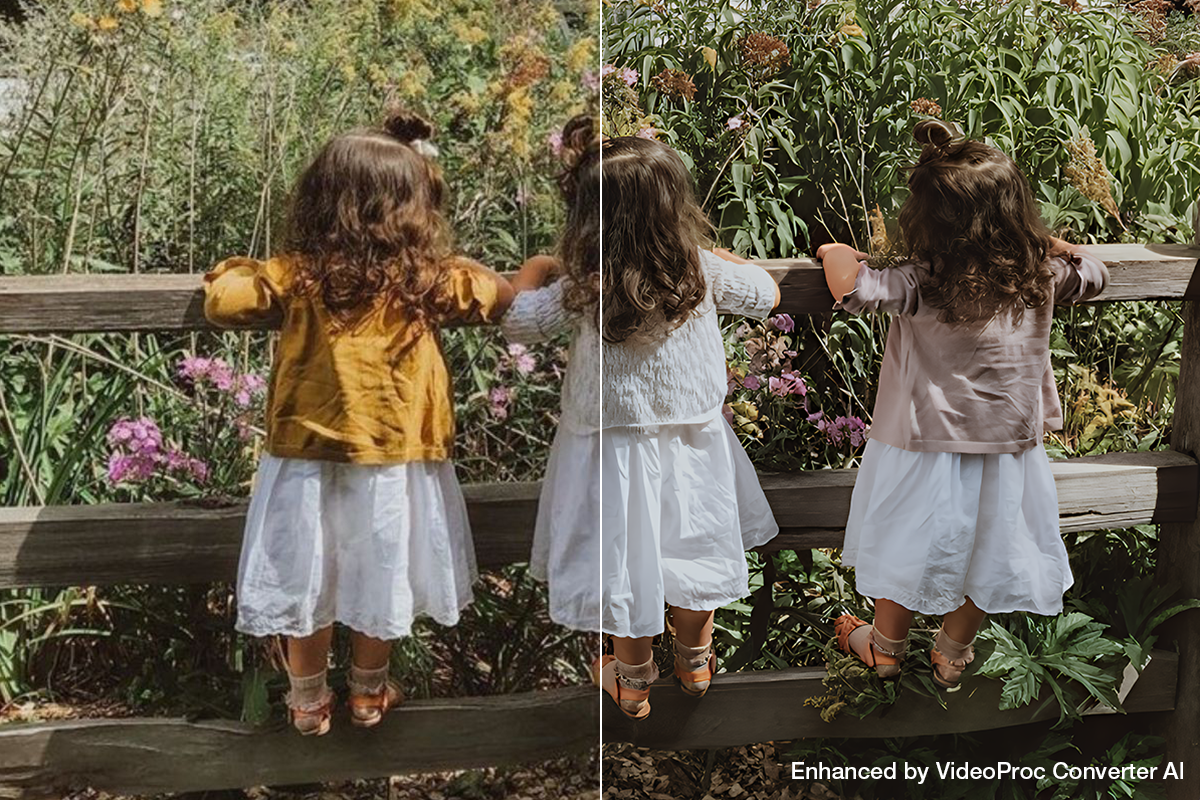
Deblurring: A blurry original video of three sisters (left) is transformed into a sharp and clear scene (right) using VideoProc Converter AI.
All-in-One Media Utility for the Hybrid Creators
For many photographers and videographers, VideoProc Converter AI isn’t about replacing existing software, but about filling a gap — handling video/image enhancement tasks that would otherwise take significant manual effort. If you want fewer tools and more “done” files, VideoProc Converter AI also provides a comprehensive backend for your editing suite:
- Professional Video Processing: Beyond AI Video Enhancing, VideoProc handles the technical hurdles that slow down your NLE (Premiere/DaVinci):
- AI Stabilization and FPS boosting: Smooth out shaky handheld shots from action cams or telephoto lenses without that jittery warping effect. Boost video fps up to 120/480 for smooth playing and slow-motion effect.
- GPU-Accelerated Transcoding: Support 370+ video/audio formats, including the stubborn 10-bit 4:2:2 HEVC, and quickly transcode it into a friendly format like MP4, MOV, MKV, H.264, etc.
- Storage-Friendly Compression: Shrink those massive 4K raw files for client review or YouTube uploads by up to 90% with virtually no visual loss.
- Recording & Quick Edits: It even includes a high-def screen recorder and a basic editor for quick trims and crops.
- Black-and-White Image Colorization: In addition to AI Super Resolution, VideoProc Converter AI offers specialized AI Colorization that brings life to black-and-white heritage photos with a single click — ideal for archival projects.
- Advanced Audio AI Tools: Modern content requires clean audio. VideoProc’s AI Audio Tool can separate stems, remove background hum, or convert formats, ensuring your vlogs, podcasts, or the like sound as good as they look.
For those looking for a dedicated, free editing experience after the enhancement phase, VideoProc Vlogger acts as a perfect companion for creative storytelling, offering a seamless path from raw, rescued footage to a finished masterpiece.
In the professional imaging world, AI shouldn’t replace the photographer’s eye; it should extend what our lenses and sensors can achieve. VideoProc Converter AI offers a rare balance: It’s powerful enough for video/image quality enhancement but efficient enough to fit into a daily workflow-all while running offline to protect your privacy.
Enhance Your Videos/Images with a Lifetime License (Up to 50% Off)
If you’re ready to elevate your visual quality and put your GPU to work, you can currently get VideoProc Converter AI at a special discount. A lifetime license for 1 PC/Mac is currently available for $54.95 — 40% off the original $89.95. Another lifetime option covering up to 5 devices is available for $79.95 (originally $159.95), making it more cost-effective for small studios or multi-station users. With lifetime free updates and no recurring subscription fees, it’s a smart, long-term investment for any creator. The perfect shot doesn’t always have to be perfect in-camera; sometimes, it just needs the right technical ally in the studio.
Full disclosureThis article was brought to you by VideoProc.
Affiliate Disclosure PetaPixel articles may include affiliate links; we may earn a commission if you buy through one.