AI Can Craft You a Photo Preset, if That’s Really What You Want

Artificial intelligence (AI) is seemingly everywhere these days, and photography is no exception. There are numerous AI-powered image editing features available, as well as AI-driven autofocus in many cameras. Developer Polychrome’s new LR Preset Generator instead puts AI to work as a text-to-Lightroom preset web tool. If, for some reason, photographers aren’t keen to utilize their own creativity when editing their images, ChatGPT can do the heavy artistic lifting.
Polychrome, which also makes the very cool Halationify iPhone app that simulates film halation on digital photos, says that photographers can create “beautiful Adobe Lightroom presets with AI.” It is as straightforward as it sounds.
Users go to the Polychrome LR Preset Generator website, and describe their “ideal preset” using text. For example, “Vintage Summer,” “Moody Film Noir,” or “Bright Wedding.” After entering the text, the user selects their desired AI model. The three options are GPT-4o, o4-mini, and GPT-4.1-nano, all of which are developed by OpenAI, the makers of ChatGPT.

With all the scant few settings hammered out, it’s time to generate the preset. In my case, my “moody colors with low contrast” preset took about 15 seconds to generate, and the associated .xmp file was automatically downloaded once it was ready.
After importing the preset into Lightroom Classic, I applied it to a landscape photo I recently captured on a misty morning. Admittedly, the result isn’t quite what I had in mind.

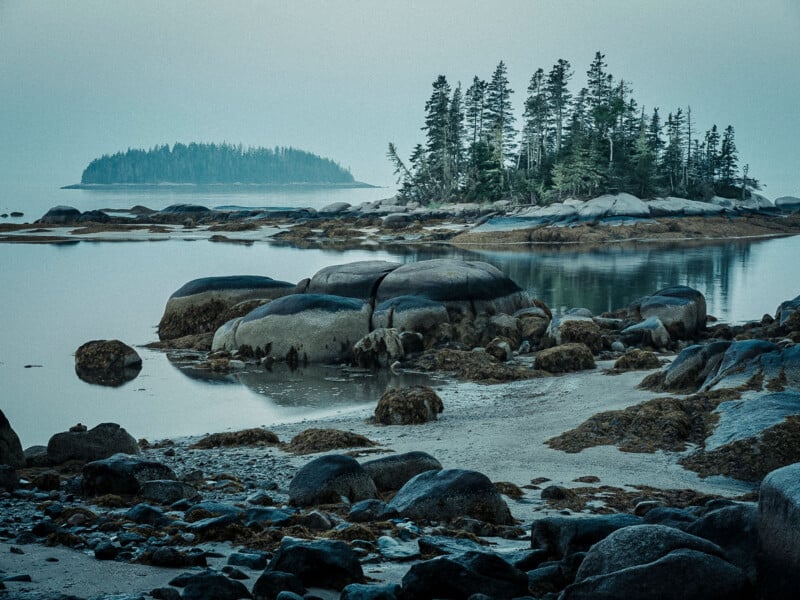
I tried again, typing “muted blues and vibrant oranges low contrast.” While not a well-structured sentence, it conveys the gist of what I’d like to get across. The results were better.
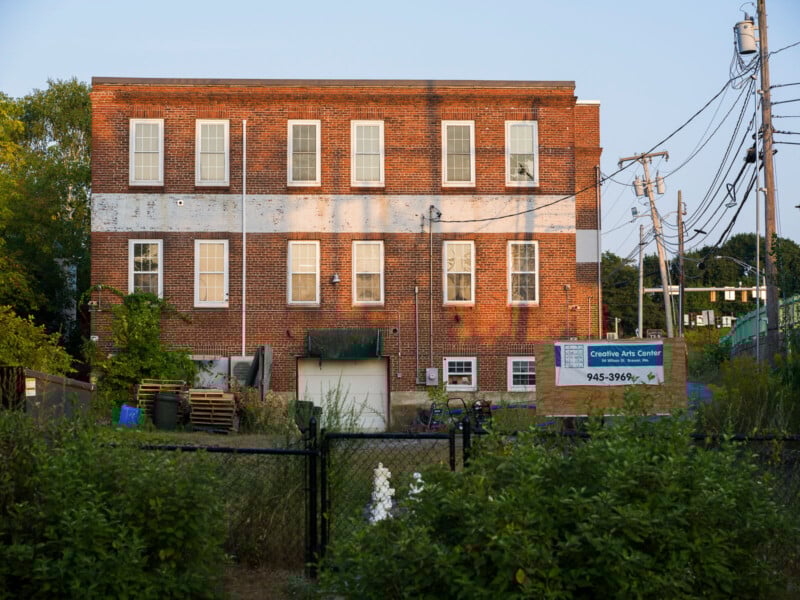
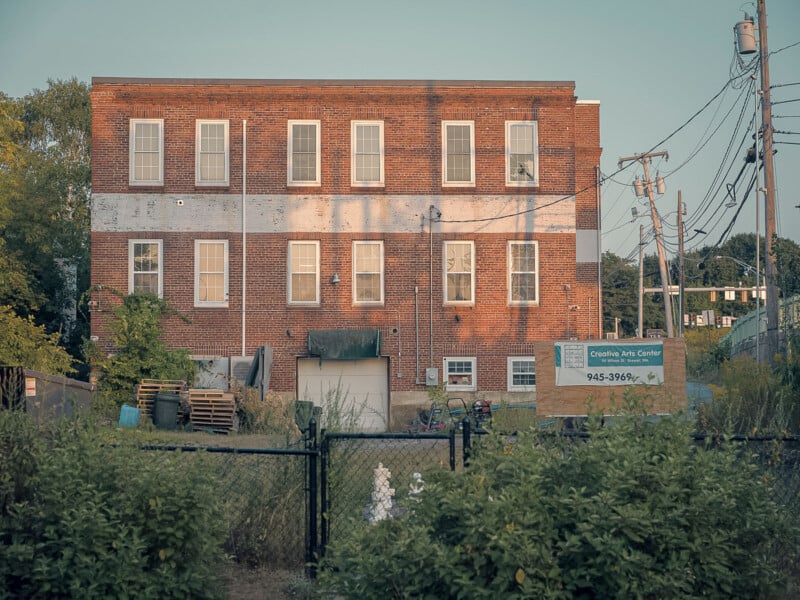
For one final AI-generated Lightroom preset, I tasked the generator with a monochrome preset with warm-toned highlights. Admittedly, “high contrast monochrome with warm highlights and film grain” is a reasonably sophisticated request, even though it’s a very straightforward post-processing workflow to achieve manually.

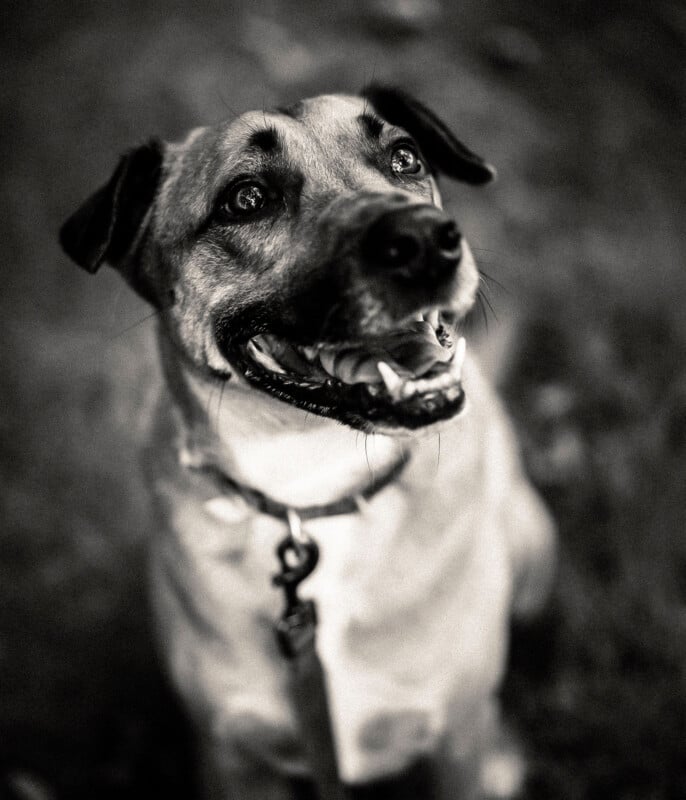
It is a bit too high contrast, but it’s hard to say the LR Preset Generator didn’t satisfy the assignment. Examining the Color Grading in Lightroom Classic, the preset did add warmth to both shadows and highlights, which is not quite what I requested, but it’s pretty close. It also increased contrast across multiple parameters, tweaking the basic sliders and the Tone Curve to darken shadow regions and brighten the highlights.
I personally do not want to suck the human element out of my post-processing, but as some full-fledged AI-assisted photo editing apps have proven, there is a market for that. In the case of the LR Preset Generator, it’s free, and although it didn’t quite achieve what I had in mind, it worked reasonably well and was a fun experiment. If you’d like to try it for yourself, head on over to Polychrome’s LR Preset Generator website and see if you can find a fresh look for your photos.
Alternatively, learn how to build your own creative presets in Lightroom. It may seem complicated at first, but it can be a powerful way to enhance your photo editing workflow.
Image credits: Photos by Jeremy Gray. Screenshots show LR Preset Generator. Header image created using an asset licensed via Depositphotos.