PhotoCuller Speeds Up Your Photo Workflow and Keeps You In Control of Your Images
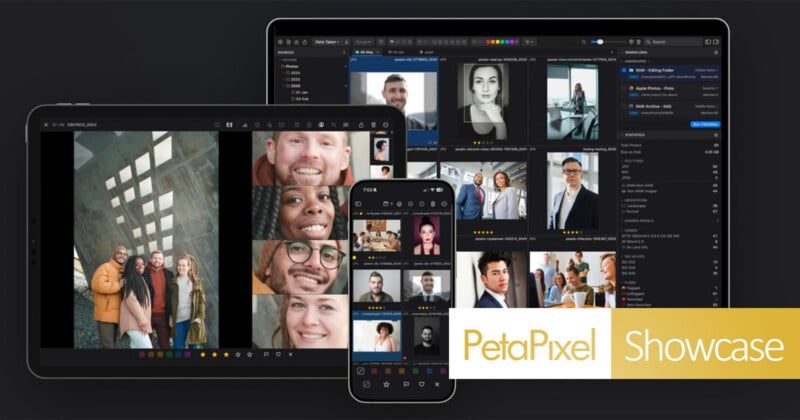
One of the most frustrating and time-consuming parts of being a photographer is dealing with all of the photos. The keepers make it worthwhile, but wouldn’t it be nice not to slog through hundreds or thousands of photos to find the few you or your client actually want? That’s where PhotoCuller comes in, helping photographers manage their photos from ingest to editing and save precious time.
Find Your Best Photos Faster
PhotoCuller is available on iOS, iPadOS, and macOS and offers tools that help photographers quickly find their best photos. While other tools make similar promises, PhotoCuller gives you the tools you need to make faster selects without taking control or agency out of your hands.
While some photographers may be happy to let an AI make all their picks, I am not. I take the photos, and I want a say in which ones make it past the final cut.
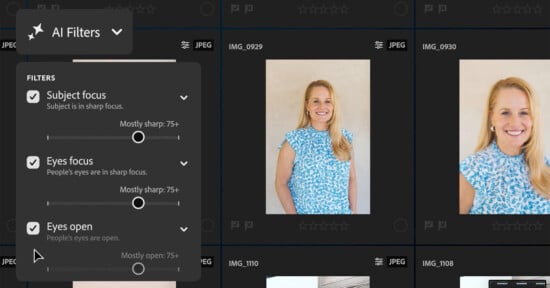
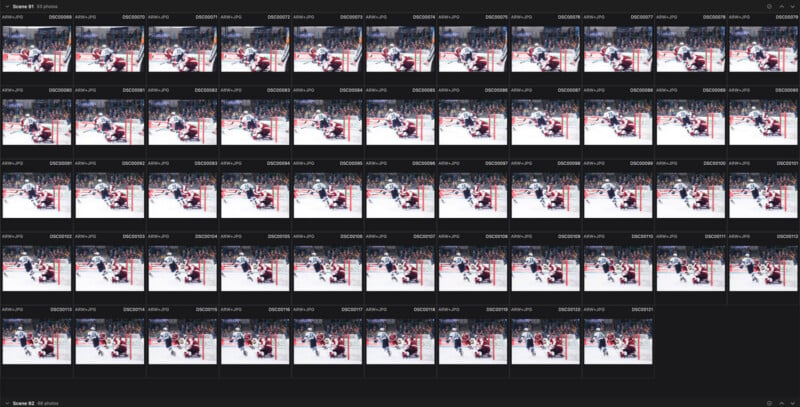
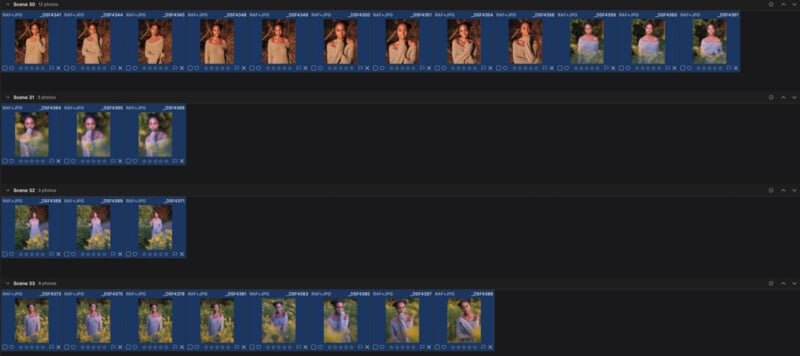
PhotoCuller includes numerous tools to help make that selection process easier, including tools to check focus, group similar and duplicate photos, and identify faces. In all of these cases, whether using focus peaking or reviewing similar shots, PhotoCuller makes it easy to zoom in quickly and decide which photos to keep and which to discard.
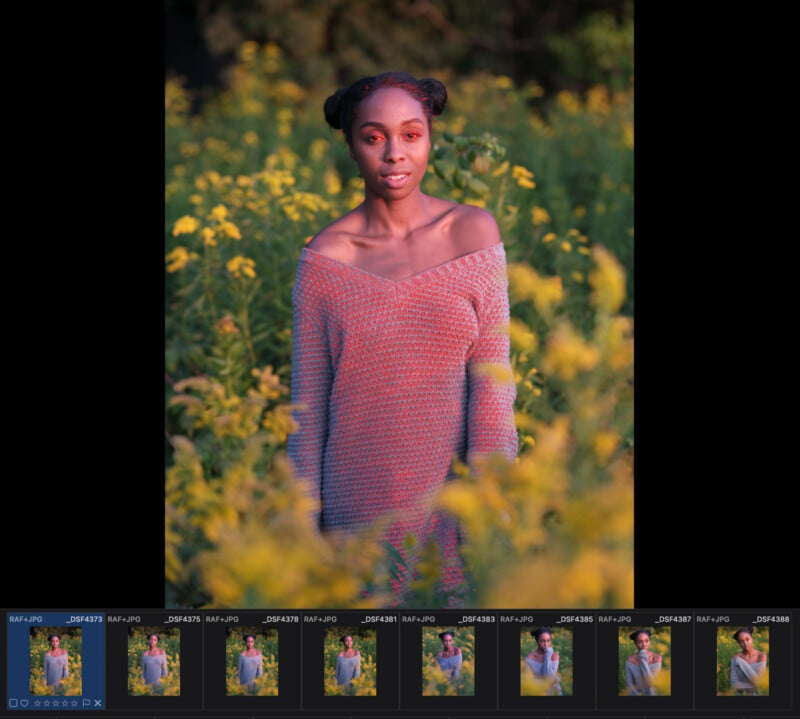
Even though I’m not a wedding or event photographer and primarily shoot landscapes, I still make minor adjustments between shots of a scene. Sometimes I tweak focus; other times I adjust settings to dial in the optimal aperture that balances depth of field and overall resolution.
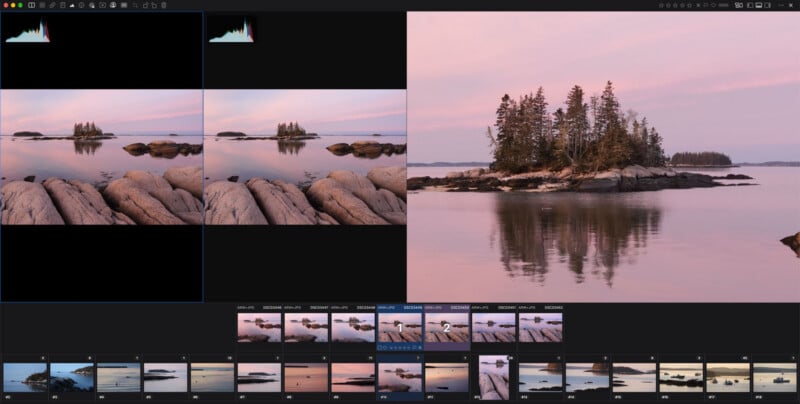
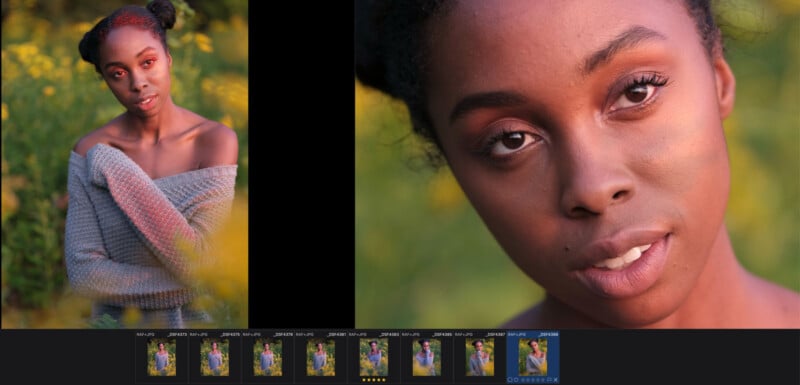
To determine which shot is the best, I need to zoom all the way in and pixel peep. In PhotoCuller, similar images are grouped together, so I can easily compare them side by side using magnified view and a loupe. No more clicking back and forth, which, while effective, wastes time. A particular time-saver here is that I can zoom in to the same spot in a pair of side-by-side photos at once.
I can also quickly check focus with focus peaking in PhotoCuller and use exposure overlays to spot blown highlights. I like exposing to the right, and that sometimes means clipping. We all fly a little too close to the Sun sometimes.

Workflow Tools That Play Nice With Your Favorite Photo Editing Apps
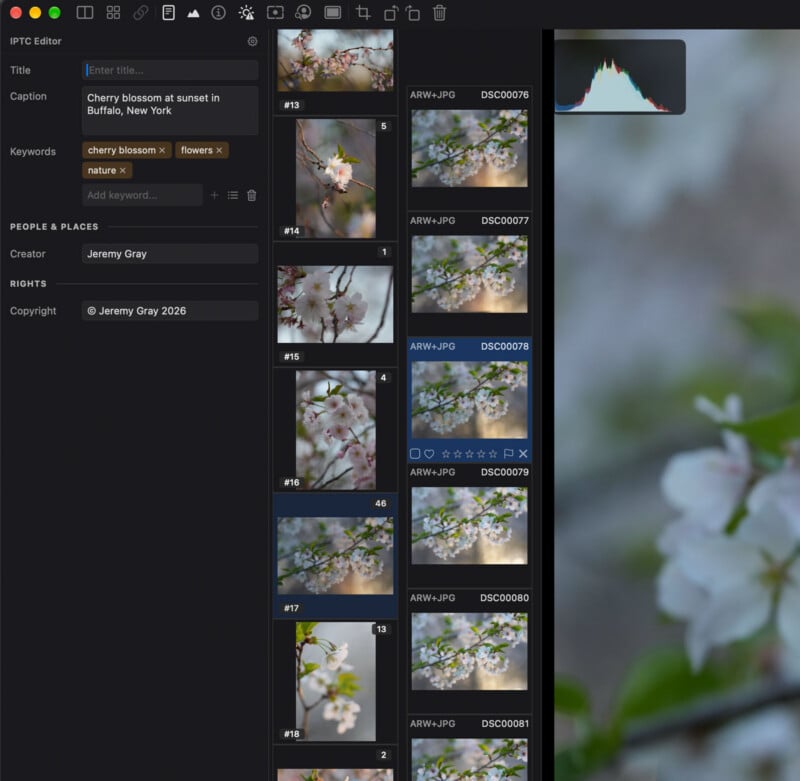
PhotoCuller also incorporates a diverse range of workflow tools built with professionals in mind. You can apply IPTC metadata, rename files, and control exports to multiple destinations without opening a second app.
To be clear, PhotoCuller is, as its name suggests, designed for culling. It is not a one-stop shop for photographers or their images. It plays nicely with many existing workflows, including Photos, NAS solutions, and external editors. Once users ingest their photos, make their ratings and selects, and edit metadata as needed, they can open them up in the external editor of their choice. XMP sidecars can be included, too.
PhotoCuller further separates itself through customization. No single tool or workflow satisfies all photographers, so PhotoCuller offers powerful, reusable recipes that photographers can fine-tune to fit their specific workflow. The app looks simple and is easy to start using, but it is deceptively sophisticated for those who need more control.
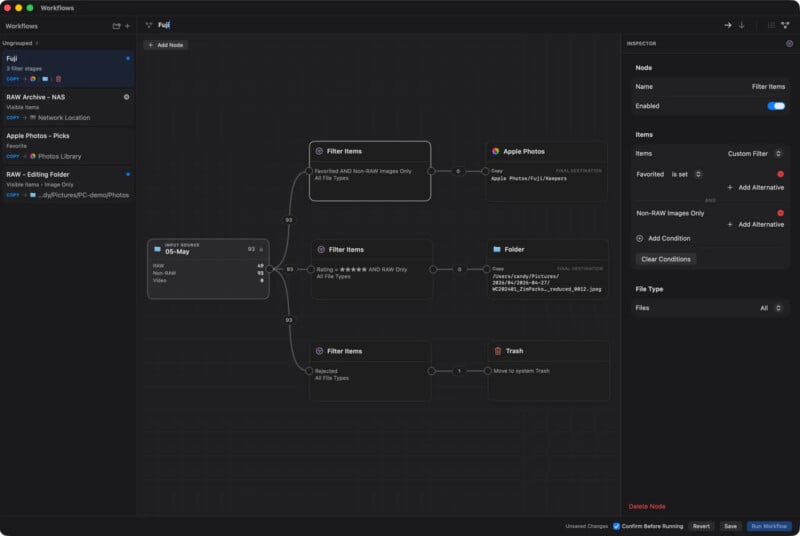
For example, you can build out a custom workflow for handling files. You can set it up so that original RAW files for only certain rated images get put into a desired folder, while both RAW and JPEG versions of another filtered set go somewhere else. You can also set it up to automatically delete rejected files entirely. You can mix and match many different conditions and stack them. And, of course, you can set up multiple node flows and save them all. Not every job requires the same treatment.
Most Digital Photographers Can Benefit From PhotoCuller
That leads to which types of photographers may want to try PhotoCuller. Obvious candidates include wedding and event photographers who often have hundreds, if not thousands, of photos from a single shoot. That’s also true of sports photographers in many cases. In situations like these, speed is essential, but photographers don’t want to relinquish creative control to achieve it.
For a photographer like me, I have a different problem to solve. I have a lot of different images, and I want to quickly go through them all, eliminate the obviously bad shots, and then easily find the best versions of the images I like. I’m not an event or wedding photographer, but I still take a lot of photos, and I don’t want to go through them one by one laboriously, then cycle back and forth between a dozen similar shots to find the sharpest one.
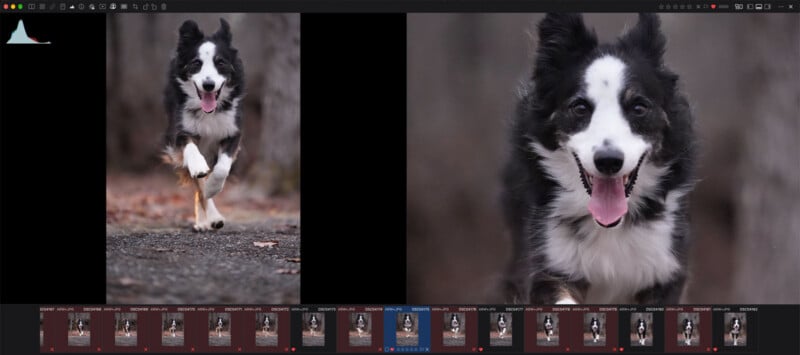
This is especially true when I’m surveying a burst of wildlife photos. I can easily capture a hundred photos in just a few seconds with the latest cameras, and often, these photos differ only because one is fractionally sharper than the rest. Or maybe I like the look of a frame, but then I realize on closer inspection that it’s not quite as sharp as I’d like. Rather than import every photo into Lightroom, for example, which is a very common workflow, I can ingest them in PhotoCuller and then keep my actual library cleaner and more organized.
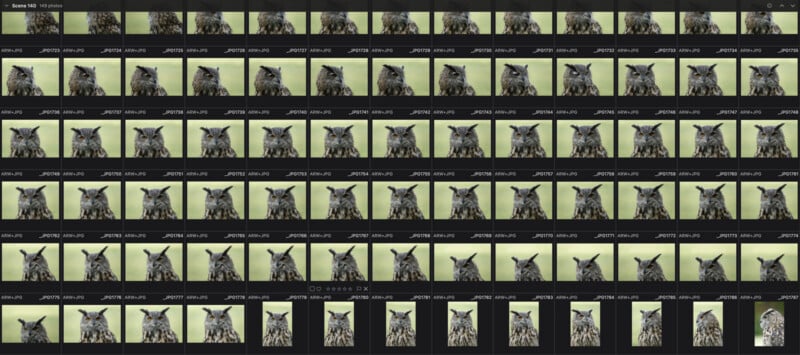
Thanks to the IPTC metadata functionality in PhotoCuller, I can also easily batch add keywords and captions to my photos as I’m culling them, which Lightroom automatically recognizes when it’s time to do my actual processing.

On-Device AI
Something I hear about a lot from other photographers and care about myself is privacy and security with my images. This is especially true when software uses artificial intelligence. PhotoCuller works entirely on device with no cloud uploading, accounts, or tracking. It also works offline across the entire Apple ecosystem, from iPhone and iPad to Mac.
Natively Built for Mac
Unfortunately for Android and Windows users, PhotoCuller is a native app built for Apple products, so it isn’t available everywhere. On the plus side, for Apple users, that means the app is fast and responsive.
Thankfully, the app is also available via a lifetime license. In a sea of subscriptions, it’s always refreshing when a photography application doesn’t require one. A standard purchase is $59 and includes lifetime access for two devices. It also includes two years of mobile access and one year of updates. If you need to update later, you can buy another year of access and get the latest updates. The license on Mac stays forever, though.
Mobile access requires a subscription or lifetime purchase and the mobile version is also available separately.
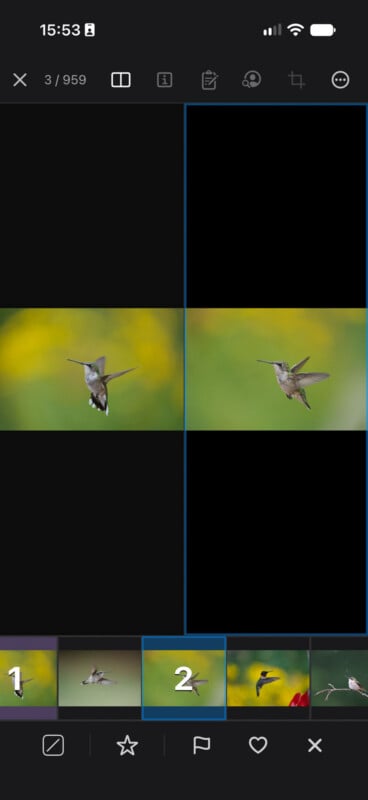
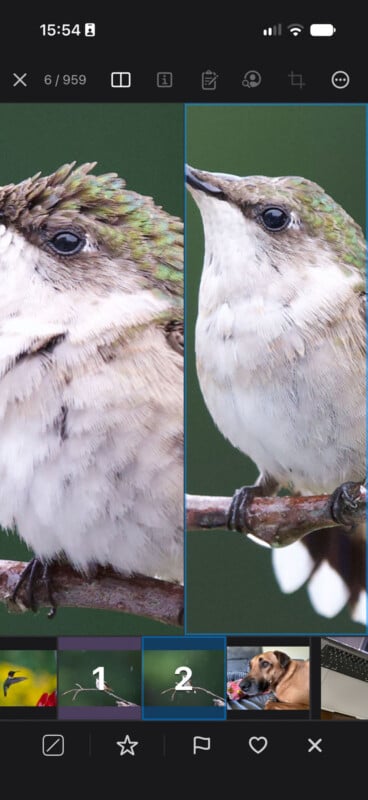
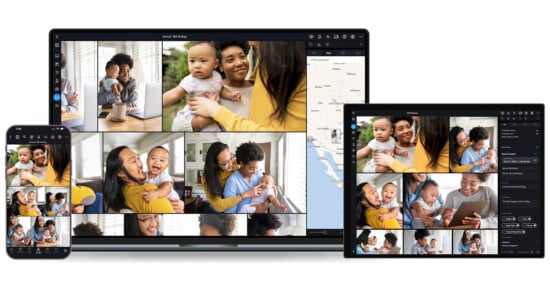
Speaking of the mobile version, the app offers many of the same features on iPhone and iPad, including culling, filtering, rating, and ingesting. You can automate a workflow on mobile and edit metadata. This is especially useful for photographers who need to start organizing their shots from the field, as nearly everyone carries their phone with them. If your camera automatically syncs with a wireless app and sends files to your phone, that’s an easy way to start using PhotoCuller on the go. You can also plug SD cards into an iPhone or iPad, which is another option. Anything you do on mobile also syncs with the desktop version.
Try PhotoCuller Now for Free
In the digital age, so many photographers quickly find themselves just swimming in files. Without a workflow, it can quickly become overwhelming, and photo libraries can become bloated and unwieldy. A wide range of solutions address this problem, and PhotoCuller’s approach is simple yet powerful.
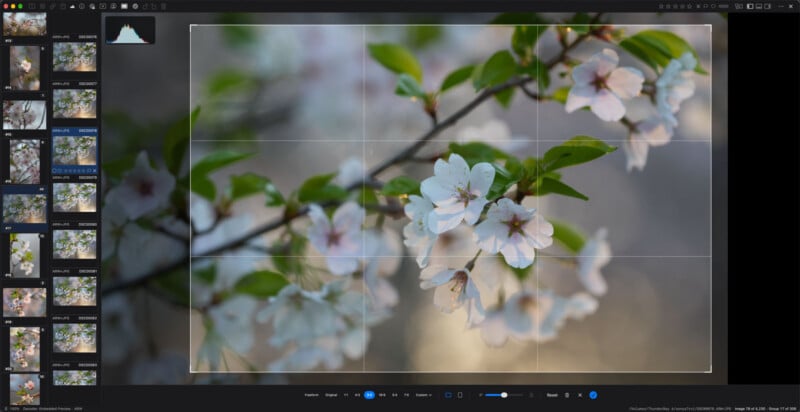
Photographers can try PhotoCuller for themselves with a full-featured 30-day free trial now. No account or credit card info needed. It’s worth trying to make your post-processing workflow easier and likely significantly faster.
Affiliate Disclosure PetaPixel articles may include affiliate links; we may earn a commission if you buy through one.