

How to Create a Surreal Double Exposure Portrait Using Photoshop
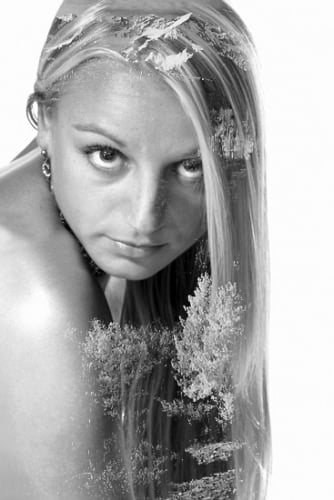
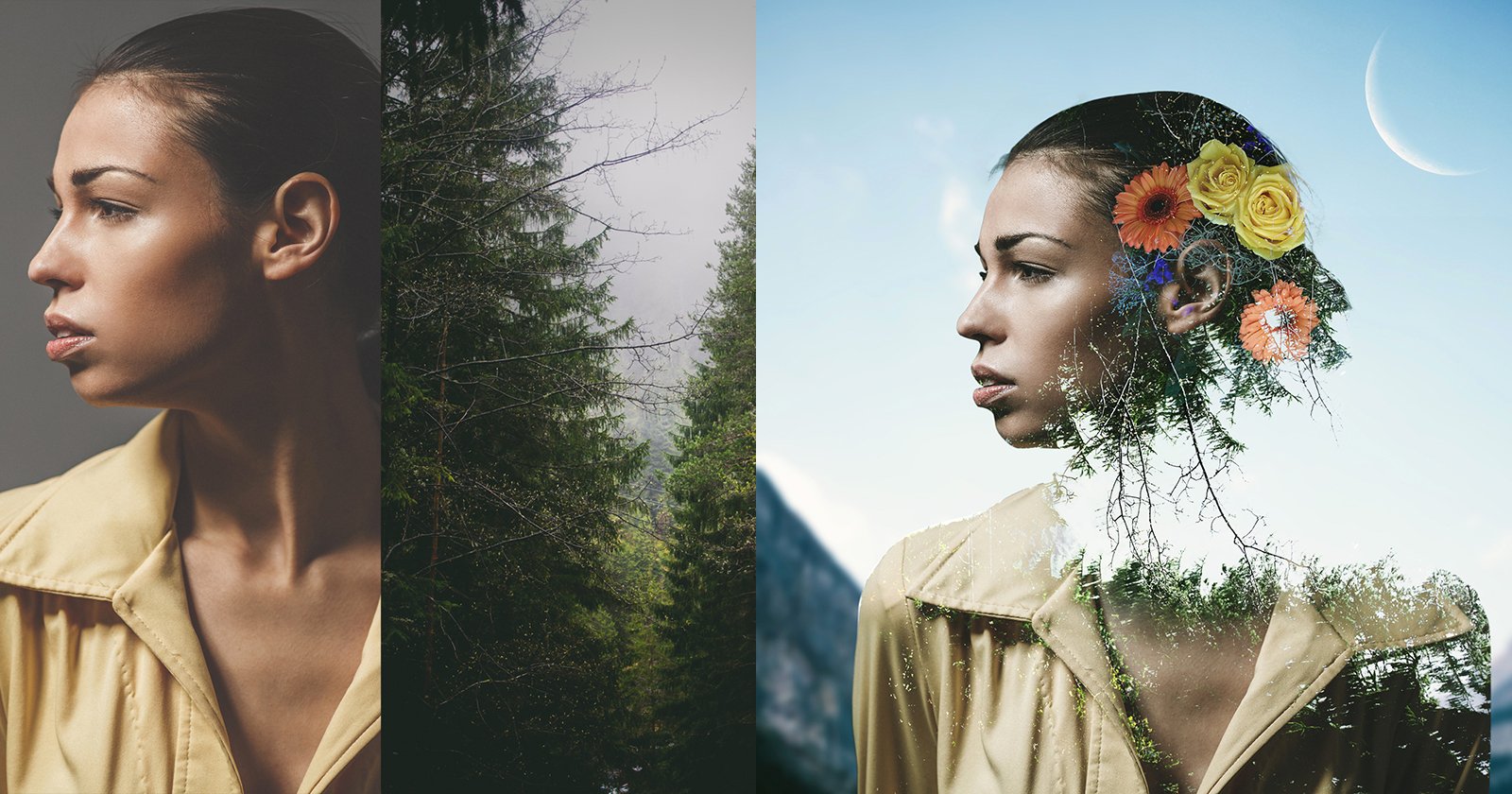
Here’s a tutorial by photographer Stephen Davies on how you can create a pseudo double exposure photograph using a couple simple steps in Photoshop.
Step 1: Open It Up
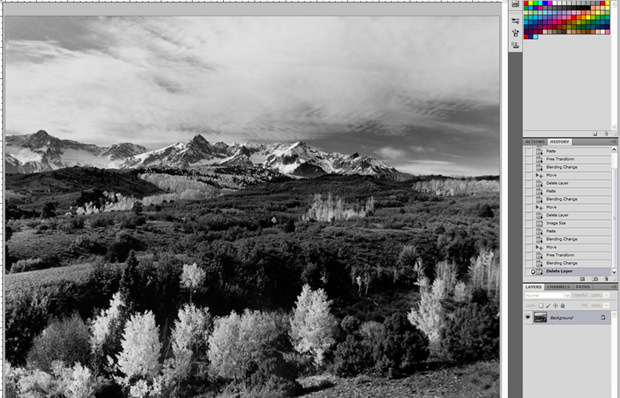
Open up your background image in Photoshop.
Step 2: Overlay the Portrait
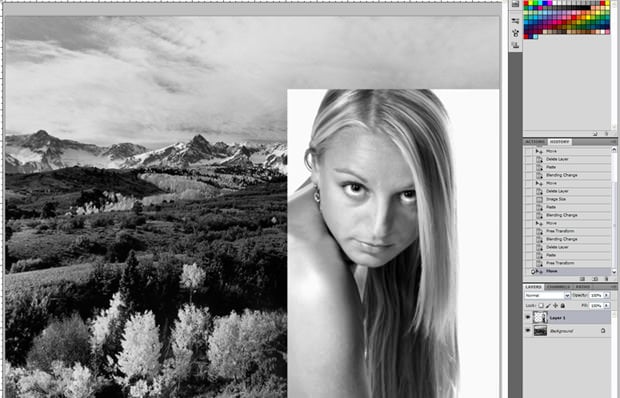
Open up your portrait and overlay your it on your background image.
Step 3: Blend Mode
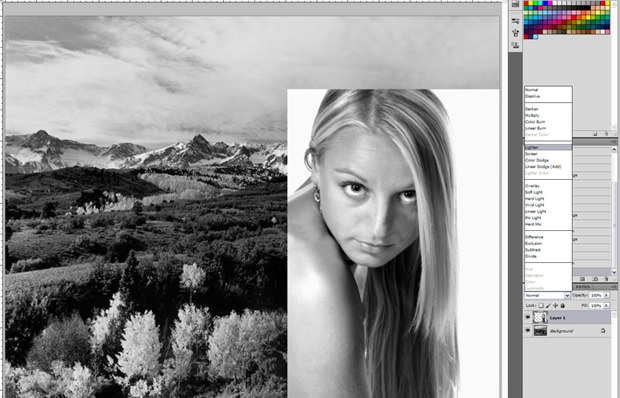
Set the blend mode of the portrait layer to “Lighten”. Adjust the image to your liking.
Step 4: Crop and Flatten
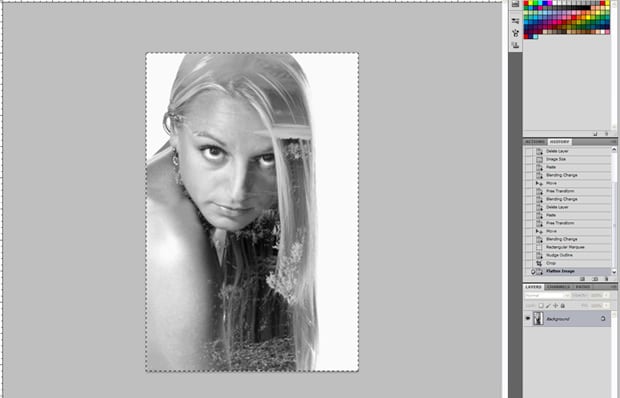
Crop out the portrait and flatten the layers. Voila! You’re done.
Image creditsPhotographs by Stephen Davies and used with permission
Affiliate Disclosure PetaPixel articles may include affiliate links; we may earn a commission if you buy through one.
Related Articles

Discussion