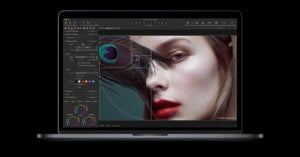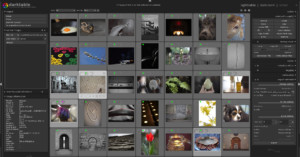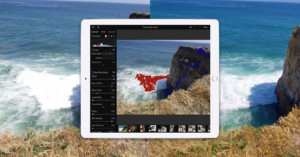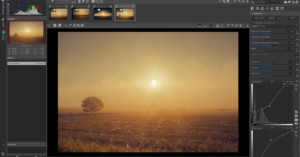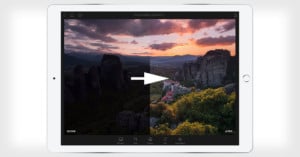
Here’s a cool sneak peek at some of the new features coming to the next version of Adobe Camera Raw. The adjustment brushes will have powerful new options for local adjustments, including temperature, tint, and noise. We also get to see the new dark interface that’ll come by default with Photoshop CS6.
Although the new, rewritten processing engine for ACR7 isn’t available to the public, it’s the same engine found in Lightroom 4, which just became available as a free public beta download a couple weeks ago.
There are plenty of presets out there that attempt to make your digital images look like they were shot with film, but VSCO Film by Visual Supply Co is different: it’s a Lightroom and Adobe Camera RAW add-on that uses film profiles to change how the RAW files are interpreted rather than simply perform standard adjustments on the images. The video introduction above shows some examples of what the various options can do. This patent-pending method of film emulation doesn’t come cheap — it costs $120 each for Canon or Nikon profiles, and $200 for both.
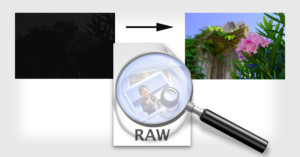
One of huge benefits of shooting in RAW is that RAW files usually have considerably more dynamic range than a JPG. This means that details in the shadows and highlights of an image that would otherwise be lost if shooting JPG are stored in the RAW file, and able to be recovered if needed during post-processing. Reddit user Jake Kelly shot the photo on the left of his friends in a dark movie theater, severely underexposing the image but avoiding hand-shake with a shutter speed of 1/60. A quick adjustment in Lightroom helped him recover a ton of detail that definitely wouldn’t be possible had he been shooting in JPG (try taking the JPG on the left and getting the result on the right).
For a more in-depth look at this topic, you should read the “Dynamic Range & Exposure Compensation” section of the RAW tutorial over on Cambridge in Colour.
Shooting in JPG mode is convenient because you instantly have a file you can throw onto the Internet, but if you’re serious about photography, you might want to think about shooting in RAW if you aren’t already. The reason is that only shooting JPG is the equivalent of letting the camera make a print for you and then tossing the negative — something film photographers would never do. Here’s a simple diagram by Haje Jan Kamps and Reddit user jannne to help you understand the differences.
Great news for PC users: Microsoft has finally released a free codec pack for Windows Vista and Windows 7 that allows you to view and work with the RAW files of more than 120 different cameras directly in Windows Explorer. Simply download and install the codec pack to get started.
Here’s a helpful tutorial by Tutvid that teaches how to give your photographs dramatic colors using only Adobe Camera Raw. If you’ve started shooting RAW but haven’t played around too much with ACR, this video is also a great primer for becoming familiar with the different panels and sliders.
Nikon announced the high-end compact P300 today to compete against the likes of Canon’s popular S95 and Olympus’ XZ-1. First, the good things — the 12 megapixel camera has a sweet f/1.8 24-100mm equivalent lens that should perform quite nicely in low light situations (especially with an ISO that can be boosted up to 3200). It can also record HD video at 1080p and 30fps, and has a 3-inch LCD that’s easy on the eyes.
On the flip side, Nikon decided for some reason to leave RAW shooting out, making this an extremely expensive, high-quality JPEG shooter, something that isn’t going to satisfy more serious photographers who want a smaller compact that still allows serious post-production work. You can find some comparison tables showing this camera stacked up against competition over on CNET and on Nikon Rumors. It’ll be available in March 2011 for $330.
French company Oloneo has just released a free beta for their product, PhotoEngine. The software is a straightforward HDR creator and non-destructive editor that allows you to quickly merge HDR photos. Additionally, it has features that can adjust specific light sources in the photo, to change the white balance or the exposure. This could come in handy when shooting HDR frames that have a variety of different light sources with different temperatures.

I was over at Lake Tahoe attending my brother’s soccer tournament this past weekend, and took this photograph from behind the opponent’s goal:
I corrected a few things in Adobe Camera RAW, and this is the resulting image (hover over it to compare):
The difference isn’t too big. I just corrected a few things, and addressed a tiny bit of clipping in certain areas.

At this point, I wanted the sky to be a little darker and for the clouds to be more dramatic. This is where the luminance tab comes in. All you need to do to instantly make the sky more interesting is drop the slider for aquas and blues. In this case, I decided to drop them both to -50 (I like simple numbers):
Here is what this simple edit does to the final photograph (hover over it to compare):
Pretty neat, huh? Play around with the luminance slider, and you can do pretty interesting things with skies.
This entry will describe my thought process when editing a portrait, though it could apply to general photos too.
Here’s the original photo I will be working with straight out of camera (i.e. RAW but processed to JPEG without any edits using Adobe Standard for color settings).
My initial reaction is that it’s underexposed on the skin. Then I notice that it’s crooked, but that doesn’t bother me too much in this picture. I also notice that it’s a bit on the cold side. (Read: Check exposure, composition, and white balance. Not necessarily in that order).
So I make some really basic edits. Since I’m not going to crop or rotate (I usually worry about composition first), I increase the exposure until I like where the skin tones are (while making the WB a bit warmer). Sometimes I’ll use fill light or recovery depending on the situation but in this case increasing the exposure was sufficient. In the end, it’s about making the skin look as I want (and harsh change in dynamic range on the skin usually looks bad but it’s not a problem in this picture). The next thing I usually do is to play with the black clipping and contrast until I’m happy. However the contrast in this picture is already to my taste so I didn’t touch anything. Then I sharpen using preset sharpening in LR. I usually don’t change the preset sharpening unless I think it looks bad. So here’s the picture after those edits (hover over to compare):
Now take a look at the following picture. Can you figure out the two things I did to finish it off? (Hover your mouse over it to compare)
The first edit is a bit more obvious than the second. I added a lens correction vignette to the outside. I do this to most of my images and it’s more of a personal taste thing (and to bring the subject out more) than anything else. The second edit is a bit harder to catch, but it’s all in the eyes…
Did you catch it? Look at his eyes. Often for single person portraits, I will do spot editing on the whites of the eyes to make them a bit whiter because they tend to be shaded in soft lighting due to eyebrows/eyelashes/eyelids.
That is all! Of course, this isn’t comprehensive in any way but is just an example of how I typically think and how I thought about this picture.